Editing guide
Jump cut: how to cut dead time out of a shot
Short answer
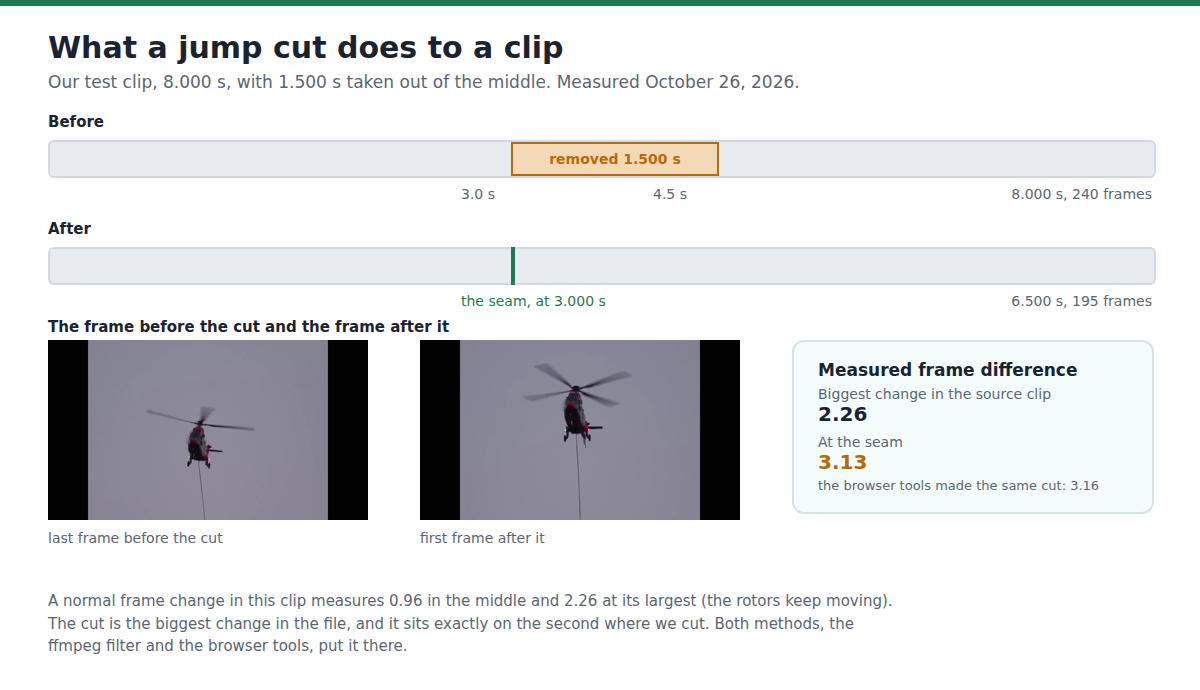
A jump cut is one shot broken into two: you take a piece out of the middle and join the ends, so the subject appears to have moved on while the camera never moved. On our test clip the cut is the largest change in the file, measured at 3.13 against 2.26 for the biggest ordinary frame change, and it lands exactly on the second we cut. You can make one in three steps in a browser: trim the part you keep at the front, trim the part you keep at the back, then join the two.
Key takeaways
- A jump cut is not a mistake, it is a cut inside one continuous shot, and the picture after it has to differ from the picture before it or the viewer reads it as a mistake.
- We cut 1.500 s out of the middle of an 8.000 s clip. The result was 6.500 s and 195 frames, exactly 45 frames fewer than the 240 of the original.
- Measured frame by frame, the cut is the biggest change in the file: 3.13 at 3.000 s, against a median of 0.96 and a maximum of 2.26 for normal frame changes in the same clip.
- The browser tools made the same cut at the same place. The trim tool gave 3.000 s and 3.500 s parts, the merge tool joined them into 6.500 s, and the seam measured 3.16 at 3.000 s.
- The join costs a re-encode, so the picture is compressed again. Our ffmpeg result was 494,257 bytes and the browser result 571,147 bytes, from a 569,934 byte original.
- The join also fixes the frame shape. The merge tool pads the result to the shape you pick, so two 1280x720 parts came back as 1920x1080.
What a jump cut is, and when it works
Wikipedia's definition is the plain one: "A jump cut is a cut in film editing that breaks a single continuous sequential shot of a subject into two parts, with a piece of footage removed to create the effect of jumping forward in time" (third party, read October 25, 2026). The same article notes that the camera position "should vary only slightly to achieve the effect", and that jump cuts "are considered a violation of classical continuity editing" while still being used on purpose.
That last point is the practical rule. A jump cut reads as a jump because the picture moved. If the subject shifted position between the two parts, the viewer sees a jump and reads it as time passing. If the picture before and after the cut is almost identical, the viewer sees a glitch and reads it as a mistake.
The opposite trick is in the same article: continuity editing uses the "30-degree rule", which says the camera has to move at least 30 degrees between two shots for them to look continuous. A jump cut is what you do when you deliberately do not move the camera, so the rule that makes a normal cut invisible makes a jump cut obvious.
Editors build the same thing with a different command: Final Cut Pro has a "Remove a gap between clips" command in its user guide (official, read October 25, 2026), and other editors use ripple delete. Either way you keep the first part, you keep the last part, and you throw away what was between them.
How to make one in three steps in your browser
The jump cut itself is not a special tool. You already have the pieces you need: cut out the dead part, then join what is left. Here is the path we ran on our test clip on October 26, 2026, with what each step produced.
- Open the free trim tool and choose your video. It reads the length of the file in your browser; nothing is uploaded.
- Trim the part you keep at the front: start 0, end 3.0 on our clip. The tool decoded and re-encoded exactly that range.
- Trim the part you keep at the back: start 4.5, end 8.0. The tool reads the same file again, so the frame rate and the picture match the first part.
- Open the free merge tool, choose the two parts in the order you want them, pick the output shape and merge. The result is one file with the dead time gone.
- Play it once from the first frame. If the join is visible, the reason is in the table below, not in the tool.
| Step | What we asked for | What we got back |
|---|---|---|
| Trim the front | 0 to 3.0 s | 3.000 s, 90 frames, 154,565 bytes, 1280x720 |
| Trim the back | 4.5 to 8.0 s | 3.500 s, 105 frames, 202,569 bytes, 1280x720 |
| Merge the two | front part then back part | 6.500 s, 195 frames, 571,147 bytes, 1920x1080 |
Source: our own run on October 26, 2026, in headless Chromium against the live site, with every download checked with ffprobe 6.1.1. Method: the same 1280x720 H.264 test file went into the trim tool twice, then both parts went into the merge tool with the horizontal shape selected; each downloaded file was probed and counted.
One thing to expect: the merge tool re-encodes into the shape you pick, so two 1280x720 parts came back as 1920x1080 with the picture padded, not stretched. If you want the file to stay 1280x720, merge it and then trim it down to the shape you want, or cut the parts with a command that keeps the frame.
What the cut looks like, measured
A jump cut is easy to recognise by eye and easy to prove by number. For every frame of a file we take the difference with the frame before it and read the average brightness of that difference. Inside a shot the number is tiny. At a cut it jumps.
Source: our own measurement on October 26, 2026. Method: ffmpeg 6.1.1 with the tblend difference filter and signalstats, one value per frame, written to a text file in the published log. In the original clip the median frame difference was 0.96 and the largest was 2.26 (the rotors turn all the time, so the ordinary values are higher than for a static shot). In the cut version the largest value in the whole file was 3.13, at 3.000 s, which is exactly where the two parts were joined.
The same cut made with the browser tools gave the same answer at the same place: 3.16 at 3.000 s in a file whose largest other change was 2.21. Two different tools, one place.
The same cut with one ffmpeg command
If you work from a terminal, the cut is a trim, another trim and a join. This is the command we ran on our test file: it takes the first 3 seconds and everything after 4.5 seconds and joins them in one pass, so the file is encoded once.
The result of that command: 6.500 s, 195 frames, 494,257 bytes, 608,316 bits per second. The file is smaller than the original (569,934 bytes, 569,934 bits per second) because it is shorter; the bit rate is slightly higher, not lower.
ffmpeg -i clip.mp4 -filter_complex "[0:v]split[v1][v2];[v1]trim=start=0:end=3,setpts=PTS-STARTPTS[a];[v2]trim=start=4.5,setpts=PTS-STARTPTS[b];[a][b]concat=n=2:v=1:a=0[v]" -map "[v]" -c:v libx264 -crf 22 -preset medium jumpcut.mp4Why the jump shows
When a join looks wrong, the cause is almost always one of these five, and none of them is the tool.
| What you see | What is happening | What to do |
|---|---|---|
| The subject has moved but the camera has not | The two parts were shot with the same framing, which is what makes the cut a jump cut | Cut while the subject is moving, or change the framing between the parts |
| A flash or a brightness step | The camera changed exposure between the two parts | Match the levels before you join, or cut where the light is the same |
| The sound is out of step with the picture | Picture and sound were cut at different places | Cut both on the same frame and check the first second after the join |
| The join is not where you expected | The trim tool cuts on the frames it has, so the edge can sit a frame early or late | Check the frame count of the result, as we did in the table above |
| Nothing seems to jump | The framing and the action before and after the join are different enough that the eye reads a normal cut | That is why editors change the framing between parts, or hide the join with a cutaway |
Source: our own test for the third and fourth rows (October 26, 2026, on a file with no sound). The first two rows and the last row are the usual advice in editing guides; we did not test them on a camera, because we have no camera. One thing we did see: in our clip the helicopter and its rotors move in every frame, and the cut was still the largest change in the file and visible as a jump in the position and the rotor angle (frames above), so continuous motion alone does not hide a jump cut.
Files you can download and check
Everything here was made by us on October 26, 2026 from the first 8 seconds of one CC0 clip published on Wikimedia Commons (a helicopter carrying a fire-fighting bucket over the Elbe, own work of the uploader). We removed the sound from our working file, so the cut is picture only.
- Download tool-jumpcut.mp4 (571,147 bytes): the jump cut made with the browser tools.
- Download test-results.txt: every command, every ffprobe line and every measured number.
The third file, tool-jumpcut.mp4, is the same cut made in the browser with the trim and merge tools. It is 6.500 s and 195 frames as well, but it is 1920x1080 because the merge tool padded it to the shape we picked, and the seam measured 3.16 against 3.13 for the ffmpeg file: the two paths agree to a few hundredths. Download it from the link below and compare the two joins side by side.
What we did not test
We tested two ways of making the same cut on one clip. Here is what that does not cover.
We did not test an editing application. Premiere Pro, DaVinci Resolve, CapCut, iMovie and every phone editor were not run, so this page gives no steps for their menus. The official Final Cut Pro command is named in the first section, read from Apple's guide; we did not run it.
We did not test a talking-head shot, a phone recording, a clip with music, or a clip with a fade at the cut. Our clip is one helicopter shot with no sound, which makes the cut easy to measure and easy to see.
We did not test the 30-degree rule in practice, and we did not test whether a jump cut reads well to a viewer. That is a craft judgement, and we are not the ones to make it for you.
The trim tool says its cut is not frame-exact. We checked the frame counts, and both of our parts landed on the frames we asked for, but we did not test the boundary on a file with a complicated frame rate.
What to do next
The situation you are in decides the next step.
- The join is visible because the subject did not move: cut on motion, or put a cutaway over the join.
- You need the sound to match the picture: cut picture and sound on the same frame, then listen to the first second after the join.
- You want to keep the same camera angle but hide the jump: use a cutaway, or change the framing by the 30-degree rule.
- You want the same result without a second encode: cut and join with the ffmpeg command above, which encodes once.
- You need the two parts to end up in one file at the shape you want: merge, then check the frame shape of the result, because the merge tool pads to the shape you pick.
Do it in your browser
Free Koldflux tool, no account needed.
Questions people ask
What is a jump cut?
A cut inside one continuous shot: you take a piece out of the middle and join the ends, so the subject appears to have moved on. Wikipedia notes that the camera position should vary only slightly across the cut for the effect to work.
Is a jump cut a mistake?
No. It is a deliberate edit that draws attention to itself, and it is used on purpose in vlogs, tutorials and fast explainers. It reads as a mistake when the picture before and after the cut is nearly the same, because then the viewer sees a glitch rather than a jump.
How do I make a jump cut in Premiere Pro or DaVinci Resolve?
We did not test either application, so we give no steps for their menus. The edit itself is the same everywhere: cut at two points, delete what is between them, and join the two parts. Final Cut Pro calls the command "Remove a gap between clips" in Apple's user guide.
How long should the removed piece be?
Any length reads as a jump. What matters is what the picture does at the join. In our test 1.500 s was removed from an 8.000 s shot and the cut was the largest visual change in the finished file.
Does making a jump cut ruin the quality?
Both parts of our browser path were re-encoded, so the picture was compressed twice. Our ffmpeg path encodes once and scored a smaller file, 494,257 bytes against 571,147 bytes, from the same 569,934 byte original. The difference was small, but it is a second generation of compression either way.
Will a jump cut work on a video I recorded on my phone?
We did not test phone footage, so we cannot promise a number for it. The technique does not depend on the camera, but phone video is often variable frame rate, and we did not test what our cut does to a variable frame rate file.
Related
Sources and how we checked
- Koldflux test log: ffmpeg 6.1.1 commands, ffprobe output, per frame difference values and the browser tool runs (our measurement, October 26, 2026) (checked 2026-10-25)
- Wikipedia: Jump cut (third party, read October 25, 2026) (checked 2026-10-25)
- Apple Support: Final Cut Pro User Guide, Remove a gap between clips (official, read October 25, 2026) (checked 2026-10-25)
- FFmpeg Filters documentation: trim and concat (official, read October 25, 2026) (checked 2026-10-25)
- FilmDaft: What Is a Jump Cut, Definition, Examples and How to Edit (third party, read October 25, 2026 for coverage comparison, not run) (checked 2026-10-25)
- StreamNeo: How to Use Jump Cuts in Video Editing (third party, read October 25, 2026 for coverage comparison, not run) (checked 2026-10-25)
We took one real CC0 clip (the first 8.0 s of a helicopter fire-fighting flight, Wikimedia Commons, own work of the uploader), removed its sound, converted it to a constant 30 fps 1280x720 H.264 working file, and cut 1.500 s out of the middle at 3.0 s. We made that cut twice: once with the ffmpeg trim and concat filters, and once in headless Chromium with the live Koldflux trim tool (twice) and merge tool, checking every download with ffprobe 6.1.1. We located the seam by measuring the difference between every frame and the frame before it with the tblend and signalstats filters, in all three files, and the commands and every per frame value are in the published log. The three competitor pages above were read for coverage comparison and not run; each of them explains the technique and names editing applications, and none of them measures a cut or ships a file you can check. The Adobe page that ranks first for this search could not be loaded from our network, so it is not used as a source. Wikipedia, Apple, Adobe, Premiere Pro, DaVinci Resolve, CapCut, iMovie, FFmpeg and Wikimedia Commons are trademarks of their owners; Koldflux is not affiliated with or endorsed by them.