Audio guide
How to extract audio from a video (MP3, WAV, AAC)
Short answer
Drop your video into the free Koldflux video to audio converter, pick MP3, WAV or AAC, and download the sound: it runs in your browser, nothing is uploaded, and files up to 100 MB are accepted. Or run one command, ffmpeg -i video.mp4 -vn audio.mp3, on your own computer. This page is for videos you made or have the rights to use; it does not download videos from other sites.
Key takeaways
- Quick path, step 1: open the MP4 to MP3 converter (or MOV, or WAV, or AAC) and press Choose file. No account, no upload, 100 MB limit.
- Quick path, step 2: press Convert to MP3. A 10 second clip took about 4 seconds in our test; the first run also loads a ~30 MB engine.
- Quick path, step 3: press Download MP3. Check the result against the numbers in the test-file section below.
- Choose MP3 for sharing, WAV for editing, and keep the original AAC (no quality loss) when the video already has AAC sound. Measured: 1 minute is about 0.96 MB as 128 kbps MP3, 1.45 MB as copied AAC and 10.58 MB as WAV.
- If the result is silent or shorter than the video, the cause is almost always the file itself: no audio track, a second track, or audio that starts late. Each has a fix below.
How do I extract audio from a video for free in my browser?
Use the Koldflux converter. It runs ffmpeg inside your browser tab, so the video stays on your device. The tool pages state a 100 MB limit per file and a one-time download of about 30 MB for the converter engine on the first conversion. We ran it end to end on October 21, 2026 (details in the test-file section below): a 10 second MP4 became a playable 128 kbps stereo MP3 in about 4 seconds. The output settings listed below are what the tool pages state, and our own ffmpeg runs further down show what those settings produce.
- Open the converter that matches your file, for example MP4 to MP3, MOV to MP3 or MP4 to WAV. The full list is on the Video to Audio page.
- Choose the file. Wait for the engine to load the first time.
- Start the conversion. The picture is dropped and only the sound is kept.
- Download the audio file. MP3 output is stereo at about 128 kbps, WAV is 16-bit PCM, AAC is about 128 kbps, and M4A is AAC in an audio-only container (as stated on each tool page).
The tool is a fit for short and medium files. For a file over 100 MB, such as a long recording, use ffmpeg below, which has no such limit.
Free tools:Video to audio converters (all formats)MP4 to MP3MP4 to WAVMP4 to AAC
How do I extract audio with ffmpeg?
ffmpeg is free and open source and works on Windows, Mac and Linux. The flag -vn means "no video". We ran each command below on October 21, 2026 with ffmpeg 8.1.2.
| Goal | Command | Result |
|---|---|---|
| MP3, 128 kbps | ffmpeg -i video.mp4 -vn -c:a libmp3lame -b:a 128k audio.mp3 | Worked, 128 kbps |
| MP3, higher quality | ffmpeg -i video.mp4 -vn -c:a libmp3lame -q:a 2 audio.mp3 | Worked, variable bitrate |
| WAV, uncompressed | ffmpeg -i video.mp4 -vn -c:a pcm_s16le audio.wav | Worked, 1,411 kbps |
| Keep the original AAC, no re-encode | ffmpeg -i video.mp4 -vn -c:a copy audio.m4a | Worked, same bytes of sound, instant |
Video.mp4 with AAC sound.
Copying (-c:a copy) is the only route that loses no quality, because nothing is re-encoded. It only works when the audio codec fits the new container: AAC into .m4a is fine; to get MP3 or WAV you must re-encode.
Which format should I pick: MP3, WAV or AAC?
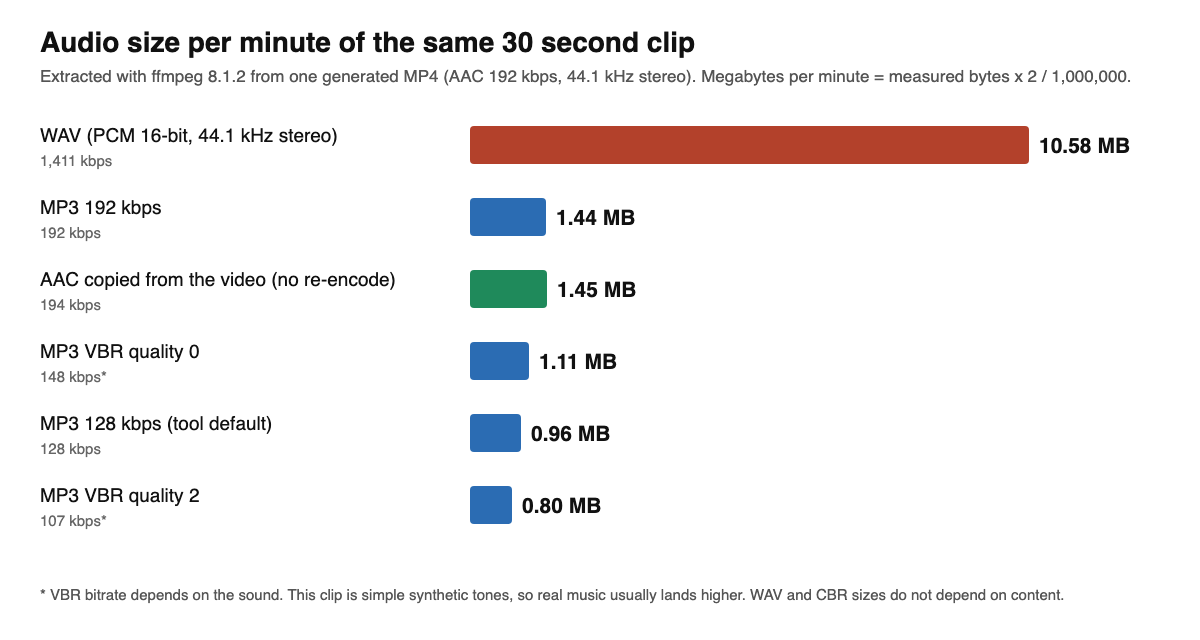
Pick by what you do next. We extracted the audio of one 30 second test video (generated, AAC 192 kbps, 44.1 kHz stereo) six ways and measured the file sizes.
| Output | Bitrate | Bytes (30 s) | MB per minute | MB per hour |
|---|---|---|---|---|
| WAV (PCM 16-bit) | 1,411 kbps | 5,292,110 | 10.58 | 635 |
| AAC copied from the video | 194 kbps | 726,230 | 1.45 | 87 |
| MP3 192 kbps | 192 kbps | 721,753 | 1.44 | 87 |
| MP3 VBR quality 0 | 148 kbps | 553,665 | 1.11 | 66 |
| MP3 128 kbps | 128 kbps | 481,218 | 0.96 | 58 |
| MP3 VBR quality 2 | 107 kbps | 402,014 | 0.80 | 48 |
Measured on October 21, 2026 with ffmpeg 8.1.2, 30 second clip, size per minute is bytes times 2.
Method: one generated test video (a test pattern with mixed tones and light noise), audio AAC 192 kbps 44.1 kHz stereo, extracted with the commands above. WAV and fixed-bitrate sizes depend only on length; variable-bitrate (VBR) sizes depend on the sound, and our tones are simpler than music, so real music usually gives a larger VBR file. Treat the VBR row as a floor, not a promise.
Short guide: WAV when you will edit or mix the sound further (no lossy step added, but big). MP3 when you need the widest compatibility and small size. AAC or M4A when the video already has AAC sound: copy it and lose nothing. A lossy-to-lossy conversion (AAC video to MP3) always adds a second generation of loss, so do not go lower than the source bitrate. Converting to WAV does not bring back anything the AAC or MP3 already threw away: it only stores the already-decoded sound without a new lossy step, which is why a WAV from a 128 kbps source is large but sounds the same as the source. A high bitrate alone does not guarantee that you cannot hear a difference either; what you hear depends on the sound, the encoder and your speakers, and we measured sizes and levels, not listening quality. FFmpeg's MP3 guide says the quality settings -q:a 0 to -q:a 3 normally give transparent results. For a longer comparison see the MP3 vs WAV vs FLAC guide.
How do I extract audio on a Mac with QuickTime Player?
Apple's QuickTime Player guide ("Export movies") says to choose File, then Export As, then pick Audio Only. The result, according to Apple, is an MPEG-4 audio file with an AAC audio track (an .m4a file). Apple's page shows no date other than 2026 copyright; we did not run macOS steps ourselves for this page, apart from the ffmpeg runs above.
How do I separate audio from a video in Clipchamp on Windows?
Microsoft's Clipchamp page on muting, separating and deleting audio says to select the video clip on the timeline, open the Audio tab in the property panel, and use the detach control. The audio then appears as its own clip, and Microsoft states that the detached audio file also downloads to your computer automatically. The page does not name the file format, so check the extension after download. That page has no date besides the 2026 copyright, and we did not run it ourselves.
What about VLC?
VLC can convert a video to audio (Media, Convert / Save), but we did not find current official VideoLAN steps for audio-only output: the VideoLAN wiki page we could reach was last edited on March 2, 2019 and says it is outdated. Until we can verify the steps on the current version, use the browser tool, ffmpeg or the app routes above.
Can I check the converter with a test file?
Yes. We made a 10 second sample video with ffmpeg (a test pattern with a 440 Hz tone on the left and a 660 Hz tone on the right, AAC 128 kbps, 44.1 kHz stereo, 320 by 180). Download it with the button under the player, run it through the converter, then compare your output with the numbers below using ffprobe -show_entries format=duration,size on your file. It is our own file, free to use for this test.
What happened when we did it on October 21, 2026: we opened the MP4 to MP3, MP4 to WAV and MP4 to AAC pages on a local development build, chose the sample, pressed Convert and then Download, using headless Chromium. All three downloaded and played back in ffprobe with the values in the table. The browser MP3 and WAV matched what ffmpeg 8.1.2 on the command line produced for the same settings apart from a few hundred bytes of MP3 header data (161,270 bytes in the browser, 161,479 with the command line). We tested only this small file and only the Chromium engine, so we do not claim the same speed for a 100 MB file or for Safari.
| File | Duration (s) | Size (bytes) | Codec and rate | Mean level |
|---|---|---|---|---|
| Sample video (test-10s.mp4) | 10.000000 | 300,872 | AAC 44.1 kHz stereo, about 127.7 kbps | -21.1 dB |
| Browser MP3 | 10.057143 | 161,270 | MP3 128,000 bps stereo | -21.5 dB |
| Browser WAV | 10.007800 | 1,765,454 | PCM 16-bit, 1,411,200 bps | -21.1 dB |
| Browser AAC | 10.357632 | 163,011 | AAC 44.1 kHz stereo, about 125.9 kbps | not measured |
Ffprobe 8.1.2, our run on October 21, 2026.
Why the MP3 is 10.057 s and the WAV 10.008 s: MP3 and AAC encoders add a few thousandths of a second of padding. Matching numbers within a few percent mean the converter worked; a result of 0 bytes, a different duration by seconds, or a silent file means something is wrong with the input (see the silent audio section).
Why is my extracted audio silent?
We reproduced the common causes with ffmpeg on October 21, 2026.
| Cause | What we measured | Fix |
|---|---|---|
| The video has no audio track | ffmpeg stopped with "Output file does not contain any stream" and wrote no file | Nothing to extract. Check the source in a player; the sound may have been removed at export |
| Two audio tracks, you wanted the second | The default MP3 came from the first track: mean level -21.5 dB after MP3 encoding, against -21.0 dB for track 1 in the source. Track 2 measured -27.1 dB in the source and -27.5 dB as MP3 (volumedetect, ffmpeg 8.1.2, two-track 30 second test clip rebuilt on October 21, 2026) | In ffmpeg add -map 0:a:1 to pick the second track |
What we saw and what to do.
Also check that the file plays with sound in a normal player first: an extraction cannot make sound the video does not have. The browser tool takes the default (first) audio track, so for a second track use ffmpeg.
Why is the audio shorter than the video?
When the sound starts after the picture, the extracted file begins at the first sound and the silent lead-in is gone. We built a 30 second video whose audio starts 1.976 seconds late (1,976 ms). The extracted MP3 and WAV were both 28.03 seconds long, 1.97 seconds shorter than the video, so laid back under the original picture the sound would play early.
To keep the lead-in, add the delay back when extracting. With the same file, ffmpeg -i video.mp4 -vn -af adelay=1976:all=1 audio.wav gave 30.00 seconds. The number is the delay in milliseconds; read yours from ffprobe (the audio stream start_time times 1000).
Small differences, a few hundredths of a second, are normal: MP3 adds a short frame of padding (our MP3 read 30.000181 s for a 30 s source).
Can I extract audio from someone else's video or from a link?
Only if you have the right to use it. Koldflux converters work on files you hold; they do not download videos from YouTube, Instagram or other sites, and we do not cover that. Extracting audio does not give you rights to reuse it, so check who owns the sound before you post it.
Limits and how we checked
- Tested by us: one generated 30 second 640 by 360 test video, audio extracted with ffmpeg 8.1.2 on October 21, 2026, with bytes and bitrate read by ffprobe and levels by the volumedetect filter. The 10 second browser results, the command line comparison and the level measurements are in the published test log.
- Not logged: the 30 second size table, the late-start figures and the 30.000181 s MP3 length come from an earlier session whose log was not kept.
- The browser converter was run end to end with headless Chromium on a local development build, with the page security policy relaxed because the development build needs it. A production build does not.
- Not tested: the QuickTime Player and Clipchamp steps come from Apple and Microsoft pages. Real files with other codecs or lengths may behave differently from our test file.
Do it in your browser
Free Koldflux tools, no account needed.
Questions people ask
How do I extract audio from a video for free?
Open the free Koldflux video to audio converter, choose your file, and download MP3, WAV or AAC. It runs in your browser, nothing is uploaded, and files up to 100 MB work. For bigger files use ffmpeg with ffmpeg -i video.mp4 -vn audio.mp3.
How can I check that the converter worked?
Download our 10 second sample video, convert it to MP3, and check with ffprobe: the MP3 should be about 10.06 seconds and about 161,000 bytes (128 kbps stereo), the WAV about 10.01 seconds and 1,765,454 bytes. These are the values we measured on October 21, 2026.
What is the best format to extract audio to?
MP3 for sharing and small size, WAV for editing, and the original AAC (copied, not re-encoded) when the video already has AAC sound. In our test one minute was 0.96 MB as 128 kbps MP3, 1.45 MB as copied AAC and 10.58 MB as WAV.
Does extracting audio lower the quality?
Copying the audio stream (-c:a copy) loses nothing. Converting to MP3 re-encodes it, which is a second lossy step. Going to WAV adds no new loss but does not restore what AAC or MP3 already removed, and makes a file about 7 times larger. A high bitrate alone does not guarantee you cannot hear a difference.
Why is the audio I extracted silent?
Most often the video has no audio track (ffmpeg then writes no file at all) or the sound you want is on another track. Check the video in a player and pick the track with -map 0:a:1.
Why is the audio shorter than the video?
The audio started late in the video and the extracted file begins at the first sound. In our test, a 1.976 second late start made a 28.03 second file from a 30 second video. Add -af adelay to restore it.
How do I extract audio from a video on a Mac?
In QuickTime Player choose File, Export As, Audio Only (Apple's Export movies page). The result is an AAC audio file. You can also use the browser converter.
Is it legal to extract music from a video?
This is general information, not legal advice. Rights depend on who made the recording and where you publish. Check who holds the rights before you reuse someone else's audio. The US Copyright Office (copyright.gov) publishes the rules. This page does not cover downloading other people's videos.
Related
Sources and how we checked
- Koldflux test log: exact commands, ffprobe and volumedetect output for the 10 second sample and the two-track clip (October 21, 2026) (checked 2026-10-21)
- FFmpeg documentation: ffmpeg tool options (-vn, -c:a copy, -map) (checked 2026-10-21)
- FFmpeg Wiki: Encode/MP3 (-q:a 0 to 3 transparent) (checked 2026-10-21)
- Apple Support: QuickTime Player User Guide, Export movies (Audio Only), macOS 27 guide, copyright 2026 (checked 2026-10-21)
- Microsoft Support: How to mute, separate, and delete audio from video (Clipchamp), copyright 2026 (checked 2026-10-21)
- US Copyright Office: copyright basics (general information, not legal advice) (checked 2026-10-21)
- VideoLAN wiki: Streaming HowTo/Easy Streaming (last edited March 2, 2019, marked outdated) (checked 2026-10-21)
We generated one 30 second 640 by 360 test video (test pattern, mixed sine tones and light noise, AAC 192 kbps 44.1 kHz stereo) and extracted audio with ffmpeg 8.1.2 on October 21, 2026, measuring bytes and bitrate with ffprobe and levels with the volumedetect filter. Silent and late-start cases were built from the same file. The 30 second size table, the late-start figures and the 30.000181 s MP3 length come from an earlier session whose log was not kept; the 10 second browser results, the command line comparison and the level measurements are in the published test log. The browser converter was run end to end on October 21, 2026 with headless Chromium against the 10 second sample on a local development build (the test browser had the page security policy relaxed, because the development build needs it; a production build does not); results are in the test-file section. Output settings come from the tool pages. QuickTime Player and Clipchamp steps are from Apple and Microsoft pages and were not tested by us. QuickTime, Apple, Microsoft, Clipchamp, FFmpeg, VideoLAN and VLC are trademarks of their owners; Koldflux is not affiliated with or endorsed by them.