Audio cleanup guide
How to remove background noise from audio and video (any app)
Short answer
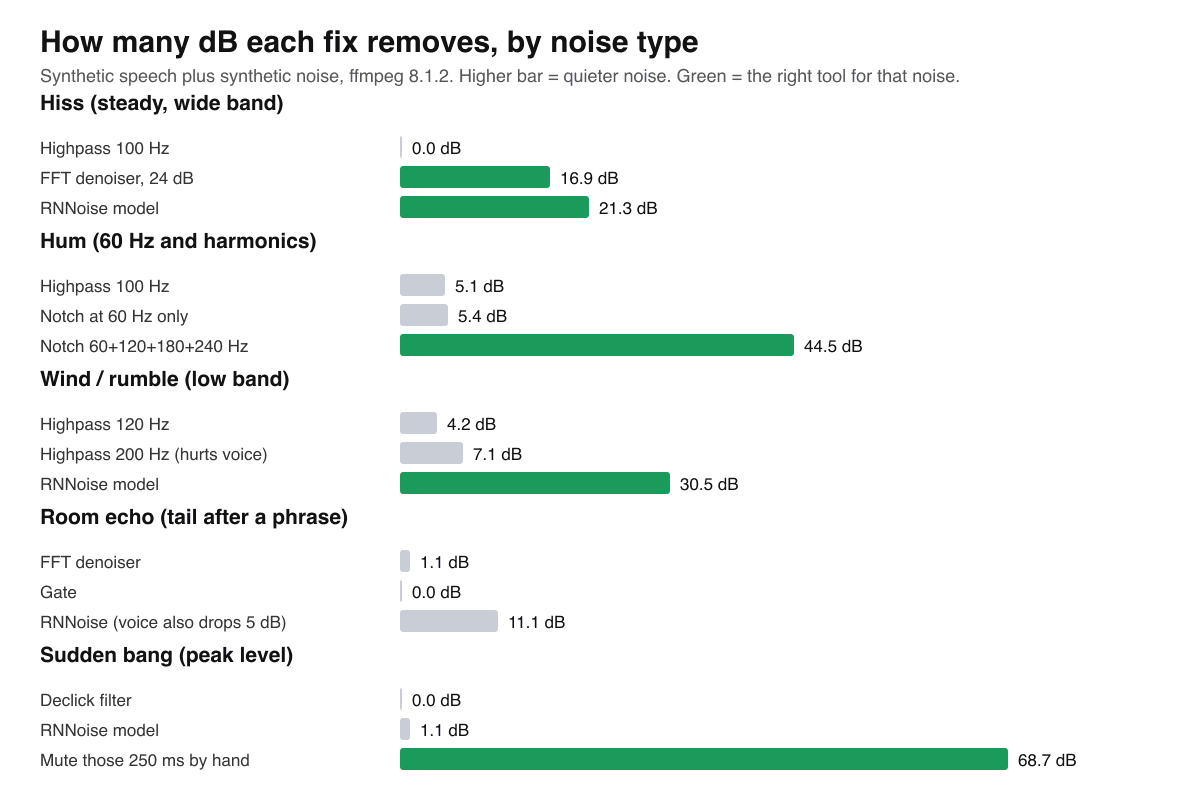
Name the noise first, because each type needs a different fix: a notch filter for hum, a noise reducer or AI denoiser for steady hiss and fans, a highpass filter for rumble, and a manual cut for one-off bangs. In our test the right fix lowered the noise by 17 to 69 dB, while the wrong fix lowered it by 0 to 5 dB. Room echo and clipped peaks cannot be removed cleanly by any app, so record close to the microphone in a quiet room when you still can.
Key takeaways
- Hum at 60 Hz (50 Hz in Europe) has harmonics. A notch at 60 Hz alone removed 5.4 dB in our test; notches at 60, 120, 180 and 240 Hz removed 44.5 dB.
- Steady hiss and fan noise: a spectral noise reducer or an AI model works. A highpass filter does nothing for hiss (0.0 dB).
- Wind and handling rumble: a highpass filter around 80 to 120 Hz is safe for voice; 200 Hz already dulls it (2.4 dB quieter speech in our test).
- Room echo is not noise. The best fix we measured cut the reverb tail 11.1 dB but made the voice 5.0 dB quieter too.
- A short bang or a bark is fixed by editing (cut, mute, replace), not by a denoiser: declick removed 0.0 dB, muting by hand removed 68.7 dB.
- Order: cut bangs, remove rumble, remove hum, reduce steady noise, then raise the volume last.
What kind of background noise do you have?
Listen to a few seconds where nobody speaks. What you hear tells you the fix, and the table below maps each noise to the tool that works and the one that does not. The decibel figures are our own measurements (method further down), not vendor claims.
| Noise | Sounds like | Fix that works | Measured | Fix that does not |
|---|---|---|---|---|
| Hiss | Steady "shhh", fan, air conditioner, mic self-noise | Noise reducer with a noise profile, or an AI speech denoiser | 16.9 dB (FFT denoiser), 21.3 dB (RNNoise) | Highpass filter: 0.0 dB |
| Hum or buzz | A steady low tone, 60 Hz in North America, 50 Hz in Europe, plus higher overtones | Notch filters on the hum frequency and its harmonics | 44.5 dB with four notches | One notch: 5.4 dB. Highpass: 5.1 dB. FFT denoiser at default settings: 0.0 dB |
| Wind and rumble | Low thumps, traffic rumble, handling noise | Highpass filter at 80 to 120 Hz; AI denoiser for heavy wind | Highpass 120 Hz: 4.2 dB. RNNoise: 30.5 dB | FFT denoiser at default settings: 0.0 dB |
| Room echo | Hollow, "bathroom" voice, tail after each word | Prevention: closer microphone, softer room. Repair is partial | Best case 11.1 dB less tail, voice also 5.0 dB quieter | Gate: 0.0 dB. FFT denoiser: 1.1 dB |
| Sudden noise | Door slam, cough, dog bark, notification | Cut, mute or replace that moment by hand | 68.7 dB when muted | Declick filter: 0.0 dB. RNNoise: 1.1 dB |
Constant noise (the same level all through the clip) is the easy case. Sudden noise and noise that changes, such as traffic or a crowd, are hard for every automatic tool. Audacity's manual says its Noise Reduction handles constant sounds such as hum, whistle, buzz and hiss, and is not suitable for individual clicks and pops or irregular noise such as traffic or an audience.
In what order should you remove background noise?
Use this order in any editor. It follows the logic that each step should not damage what the next step needs, and it is our recommended workflow rather than a measured benchmark.
- Work on a copy and keep the original. Noise removal cannot be undone once exported.
- Cut or mute one-off bangs, coughs and clicks first, so the denoiser does not learn them as part of the noise.
- Apply a highpass filter at 80 to 120 Hz to remove rumble and wind thumps.
- Notch out hum: the base frequency and its harmonics (60, 120, 180, 240 Hz in North America).
- Reduce the remaining steady noise with a noise reducer or an AI denoiser. Start gentle and raise it only while the voice still sounds natural.
- Optionally add a gate or expander so the leftover noise drops between words. It does not clean noise that sits under the voice.
- Normalize or raise the volume last. Boosting earlier raises the noise with the voice.
Audacity's manual warns that higher reduction values than necessary make the noise quieter but damage the audio you want to keep, so use the lowest value that makes the noise acceptable.
Free tool:Normalize audio
How do you remove noise from a video file?
A video has an audio track that you can clean without touching the picture. Free route: open the video in the Koldflux noise remover, choose Gentle or Standard, and download the same video with the cleaned track. It runs an AI speech denoiser (RNNoise) in your browser, so the file is not uploaded, and the picture is copied untouched.
In our test the Gentle setting (mix 0.7) lowered steady hiss by 9.3 dB and Standard by 21.3 dB. Gentle keeps more of the natural room sound. Use Standard for a steady fan or hiss and Gentle for a voice that starts to sound watery.
If you edit in CapCut, follow our separate CapCut guide for the exact buttons. This page covers the part that works in every app.
Which tool works for which noise?
Under the app names, editors offer a few kinds of filters. Knowing the type tells you what to look for in any menu.
Highpass and notch filters (equalizer)
- Highpass cuts everything below a frequency. Good for rumble and wind. Useless for hiss and for hum above its cutoff.
- A notch cuts a very narrow band. Good for hum, which sits at one frequency and its multiples.
- Cost to the voice in our test: highpass 120 Hz lowered speech 0.8 dB, highpass 200 Hz lowered it 2.4 dB, the four hum notches lowered it 0.6 dB.
Spectral noise reducers
- They learn or estimate the noise spectrum and subtract it. Best for constant noise.
- Many need a noise profile: select a stretch with only the noise, let the tool learn it, then apply it to the whole clip.
- At default settings the ffmpeg FFT denoiser did nothing against hum (0.0 dB). For hiss it removed only 3.8 dB with its noise floor set to minus 45 dB, and 16.9 dB once the floor matched the measured noise (minus 38 dB), so set it from your own gap level.
AI speech denoisers
- They are trained to keep speech and remove everything else. Best when several noises mix or the noise changes.
- Risk: a voice in a very reverberant room can be treated as noise. In our echo test the RNNoise model lowered the voice by 5.0 dB.
- They do not remove a bang that is as loud as speech: RNNoise lowered the peak by 1.1 dB.
Gates and expanders
- They mute or lower the track when the level drops below a threshold. They clean the pauses, not the noise under the words.
- A gate made hiss in the pauses 24.2 dB quieter in our test, but the voice still carried its hiss. Use it as the last polish, not as the fix.
What can you not remove from audio?
Be realistic before you spend an hour on a recording. These problems have no clean fix in any app:
- Room echo. We measured a best case of 11.1 dB less echo tail, and the voice got 5.0 dB quieter with it. The usual result is a thin, processed voice.
- Clipped speech. Once the peaks were flattened at recording, the missing waveform is gone. A declipper can soften it, not restore it. See our guide on audio clipping.
- Another person talking behind you. A denoiser treats speech as the signal, so it keeps it. Only a separation model that isolates one speaker can help, and results vary.
- Music in the background of a voice. A speech denoiser may reduce it but not fully, and removing it changes the voice.
- Noise louder than the voice. If the noise is as loud as the speech, any tool that removes it also removes the voice. Re-record if you can.
Free tool:
How do you prevent background noise when recording?
The cheapest fix is the one you make before you press record. Each rule below follows from how the noise reaches the microphone.
- Get close. RODE advises a dynamic microphone 2 to 6 inches from the grille for voice. A closer mouth makes the voice louder than the room, which does more than any filter.
- Turn off fans, air conditioning, fridge hum and notifications before you record, and note anything you cannot turn off.
- Choose a smaller, softer room: carpet, curtains, a couch and a closet with clothes cut echo. A bare kitchen or bathroom adds the echo you cannot remove later.
- Point the back of a cardioid microphone at the noise source: Samson describes its cardioid Q2U as rejecting noise from the rear and sides.
- Use a windscreen outdoors, and record 10 seconds of the room with nobody speaking. That clip is the noise profile for a reducer.
- Set the level so the loudest word peaks well below the maximum. A clipped recording cannot be repaired, a quiet one can be raised.
Raising a quiet recording raises its noise too, so this is a trade-off: get close and keep the gain moderate, rather than record far away and boost later.
Free tool:Normalize audio
What did we measure, and how can you repeat it?
We made a 9.9 second clip of a synthetic voice (the macOS "Samantha" voice) with two silent gaps, mixed in each synthetic noise with ffmpeg 8.1.2, ran each filter, and measured the RMS level with the astats filter. The noise level is the average RMS in the gaps (3.0 to 5.0 s and 8.0 to 9.8 s). The speech level is the average RMS of the two spoken parts. The noises were white noise at 0.02 amplitude (hiss, about minus 38.8 dBFS in the gaps), a 60 Hz tone with 120, 180 and 240 Hz overtones (hum, minus 35.5 dBFS), low-passed brown noise (wind, minus 26.2 dBFS), and 0.5 amplitude white noise bursts of 56 ms. Echo was ffmpeg aecho with delays of 60, 120, 240 and 400 ms.
The hum notches were bandreject filters at 60, 120, 180 and 240 Hz with a 6 Hz width. The FFT denoiser was afftdn with nr=24 and nf=-38 for hiss. The AI model was RNNoise (arnndn with the "somnolent-hogwash" speech model, the same model our tool uses). Declick was adeclick at default settings.
Limits: these are clean synthetic signals, so real recordings will remove less. The hum numbers also depend on how strong the overtones are: in a second run with equal-strength 60, 120, 180 and 240 Hz tones and a different synthetic voice, four notches removed 46 dB, while one notch removed 1.3 dB and a 120 Hz highpass 2.3 dB, so the ranking held but the small numbers moved. Use the numbers to compare fixes against each other, not as a promise for your file. Hum was removed by the AI model too (32.8 dB in the test), but a notch is the targeted fix, keeps the voice intact and is available in every editor.
- Highpass: ffmpeg -i in.wav -af "highpass=f=120" out.wav
- Hum: ffmpeg -i in.wav -af "bandreject=f=60:width_type=h:w=6,bandreject=f=120:width_type=h:w=6,bandreject=f=180:width_type=h:w=6,bandreject=f=240:width_type=h:w=6" out.wav (use 50, 100, 150, 200 where mains is 50 Hz)
- Hiss: ffmpeg -i in.wav -af "afftdn=nr=24:nf=-38" out.wav (set nf near the noise floor you measured)
- AI model: ffmpeg -i in.wav -af "arnndn=m=model.rnnn" out.wav (model from the RNNoise models repository)
Do it in your browser
Free Koldflux tools, no account needed.
Remove noise from videoRemove noise from audioNormalize audio
Questions people ask
How do I remove background noise from audio for free?
Use the free Koldflux noise remover for a video or audio file: it runs in your browser, so nothing is uploaded. For finer control, Audacity is free and has a Noise Reduction effect and an equalizer for hum and rumble.
Can I remove background noise from a video?
Yes. Clean the audio track and keep the picture as is. The Koldflux video noise remover copies the video untouched and replaces only the audio.
Can all background noise be removed?
No. Steady hiss, hum and rumble can be reduced a lot. Echo, clipped peaks, other voices and noise as loud as the speech cannot be removed cleanly.
Why does my voice sound watery or robotic after noise removal?
The reduction is too strong. Audacity's manual says higher reduction values than necessary damage the audio that remains. Lower the amount, or use a Gentle setting that mixes some of the original back.
How do I get rid of a 60 Hz hum?
Notch the hum frequency and its overtones (60, 120, 180 and 240 Hz). In our test four notches removed 44.5 dB, while one notch removed only 5.4 dB.
Does a highpass filter remove hiss?
No. In our test it removed 0.0 dB of hiss. A highpass filter only helps with low rumble and wind.
How do I remove echo from a recording?
You cannot remove it cleanly. The best fix in our test cut the echo tail 11.1 dB and also lowered the voice 5.0 dB. Record closer to the microphone in a softer room instead.
Should I remove noise before or after raising the volume?
Before. Raising the volume first raises the noise along with the voice, so denoise, then normalize.
Related
Sources and how we checked
- Audacity Manual: Noise Reduction (checked 2026-10-20)
- FFmpeg filters documentation (afftdn, arnndn, adeclick, agate, bandreject, highpass) (checked 2026-10-20)
- RNNoise models repository (somnolent-hogwash speech model) (checked 2026-10-20)
- RODE: tips on microphone technique (checked 2026-10-20)
- Samson Q2U product page (cardioid pattern rejects noise from the rear and sides) (checked 2026-10-20)
Every decibel figure comes from our own ffmpeg 8.1.2 measurements on synthetic speech and noise on October 20, 2026 (method in the last section). Rules quoted from the Audacity manual, the ffmpeg documentation and RODE were read on the same date. The chart was drawn by us from the measured values.