CapCut how-to
How to remove background noise in CapCut (phone, PC, web)
Short answer
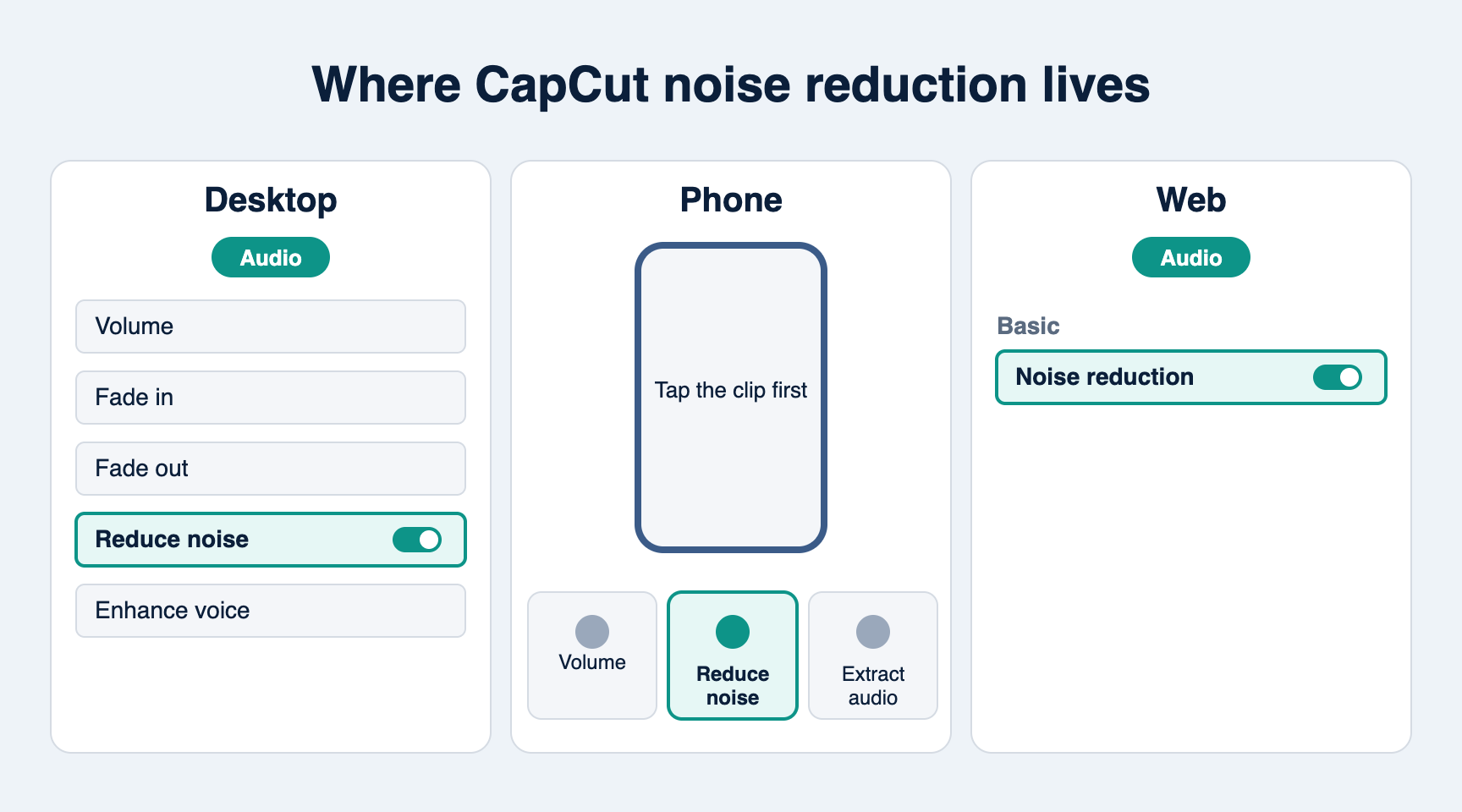
Select the clip with the noisy sound and turn on Reduce noise. On CapCut desktop it sits in the Audio tab of the panel on the right; on the phone, tap the clip and scroll the bottom toolbar to Reduce noise; in CapCut Online it is Audio, then Basic, then Noise reduction. It works best on steady hum, fan, air conditioning and hiss. For echo or mouth clicks add Enhance voice, for music under a voice use Vocal isolation, and expect a Pro prompt at export on some accounts.
Checked against: CapCut for iPhone and Android 19.7.0 (App Store release of October 8, 2026), CapCut desktop for Windows and Mac and CapCut Online as described in CapCut's own guides dated November 2025 to September 2026. We could not run the apps ourselves for this page, so each step names its source.
Method 1: CapCut desktop (Windows and Mac)
The desktop editor has the most audio controls: Reduce noise, Enhance voice with an intensity slider, and Vocal isolation, all in the Audio tab.
Put the video on the timeline
Create a project, click Import, and drag the video onto the timeline.
Select the clip and open Audio
Click the clip on the timeline, then click the Audio tab in the panel on the right. If the sound was already separated, click the audio clip instead; its controls are under Basic.
AudioBasic
Turn on Reduce noise
Switch on Reduce noise. CapCut analyzes the clip and plays it back cleaned; switch it off and on again to compare. If your build shows a strength slider instead, start in the middle and raise it only while noise remains.
Add Enhance voice only if speech still sounds rough
For echo, pops or mouth clicks, tick Enhance voice and adjust the Intensity slider. Start low: high values are what make a voice sound robotic.
Listen, then export
Play the loudest and the quietest parts of the clip with headphones. If the voice sounds watery or underwater, lower or remove Enhance voice before you export.
Method 2: CapCut mobile (iPhone and Android)
On the phone the switch is in the clip's toolbar, not under the Audio button on the main toolbar, which adds music and sounds.
Open the project and tap the clip
Tap the clip in the timeline so it is outlined and the bottom toolbar changes to the clip's tools.
Scroll to Reduce noise
Swipe the bottom toolbar left until you reach Reduce noise, tap it, and turn the switch on.
Only the voice? Extract the audio first
If you want to clean just one part, tap Extract audio to put the sound on its own layer, split that layer around the noisy part, then tap the piece and use Noise reduction on it alone.
Extract audio
Check and export
Play it back with headphones, then tap Export. If CapCut shows a Pro prompt at export, see the question on Pro below.
Method 3: CapCut Online (web)
Upload the video
In CapCut Online, choose Create new, then Blank canvas, and upload the video with the plus button.
Turn on Noise reduction
Select the clip, open Audio in the right panel and, under Basic, switch on Noise reduction.
AudioBasicNoise reduction
Export
Click Export to download the video or publish it.
No CapCut at hand?
Do the same job in your browser with a free Koldflux tool.
Which CapCut tool fixes which noise?
| What you hear | Tool in CapCut | Where | What to expect |
|---|---|---|---|
| Fan, air conditioning, hum, light hiss | Reduce noise | Audio tab (desktop), clip toolbar (phone), Audio > Basic (web) | Best case: steady noise under one voice |
| Echo, pops, mouth clicks on speech | Enhance voice, Intensity slider | Audio tab, desktop | Helps light echo; strong room echo stays |
| Music or crowd under a voice | Vocal isolation, Keep vocal | Audio tab, desktop | CapCut says downloading the result needs Pro |
| Grainy, speckled picture in low light | Reduce image noise | Video tab, not Audio | Cleans the picture, not the sound |
| Strong wind, distortion, clipped peaks | None works well | Re-record, or use a windscreen next time | Noise reduction cannot rebuild clipped audio |
If it doesn't work
| What you see | Fix |
|---|---|
| There is no Reduce noise button on the phone | You are on the main toolbar. Tap the clip itself first, then swipe the clip's toolbar. If it is still missing, update CapCut; the button moves between versions and regions. |
| Reduce noise is grayed out or does nothing | The selected clip has no sound or is muted. Select the clip that carries the audio, or the extracted audio layer, and check its volume is above 0. |
| The voice sounds robotic or underwater | Lower Enhance voice Intensity or turn it off and keep only Reduce noise. CapCut's own tool page gives the same advice: back the effect off until the voice sounds natural. |
| Background music was removed too | Noise reduction treats music as noise. Clean the voice clip only, then add the music on its own track afterwards. |
| Enhance voice or Vocal isolation is stuck at a percentage or shows a network error | Check the internet connection, split a long clip into shorter parts and run it again on each part. |
| A Pro prompt appears when you export | A Pro feature is still applied. Turn off the switch with the Pro badge and export, or use a free tool for the cleanup (see below). |
Questions people ask
Is noise reduction in CapCut free?
It depends on your account and region, and CapCut's own pages disagree. Its 2025 guides call noise reduction free, while its CapCut Pro page dated September 23, 2026 lists Reduce noise among the Pro features of the Audio tab. If the switch shows a Pro badge, exporting with it on will ask for Pro.
How do I remove background noise in CapCut without Pro?
Export the video from CapCut with the noise still in it, clean the sound in a free tool such as the Koldflux noise remover below (it copies the picture unchanged), and import the cleaned file back if you still need to edit. On our 10 second test clip that tool raised the speech to noise measure (SDR) by 3.9 dB and left the picture bit for bit identical.
Can CapCut remove wind noise?
Light, steady wind gets quieter with Reduce noise. Strong gusts overlap the voice and usually stay, or the voice gets damaged with them. A foam or fur windscreen while recording works far better.
Can I remove noise from only part of a clip?
Yes. Extract or separate the audio, split it at the start and end of the noisy part, and turn on Reduce noise for that piece only.
What is the difference between Reduce noise and Reduce image noise?
Reduce noise cleans the sound. Reduce image noise, in the Video tab, smooths grain in the picture from low light. They fix different problems.
Does Reduce noise work on a voiceover I recorded in CapCut?
Yes. Select the recording on the timeline and turn on Reduce noise the same way as for a video clip.
More CapCut guides
Sources and how we checked
- CapCut: Mastering Audio: A Guide to Noise Reduction (checked 2026-10-19; Page dated November 5, 2025)
- CapCut: Remove background noise from audio (tool page) (checked 2026-10-19; Undated tool page; steps for the desktop Audio tab)
- CapCut: How to Clean Up Audio (CapCut Web steps) (checked 2026-10-19; Page dated December 31, 2025)
- CapCut: Extract audio from video on Web, PC and App (checked 2026-10-19; Page dated January 22, 2026)
- CapCut: Podcast voice enhancers (Reduce noise and Enhance voice steps) (checked 2026-10-19; Page dated December 31, 2025)
- CapCut: AI audio enhancers (Enhance voice intensity and Vocal isolation) (checked 2026-10-19; Page dated June 17, 2025)
- CapCut: Best vocal removers (Vocal isolation steps and Pro note) (checked 2026-10-19; Page dated June 17, 2025)
- CapCut: How to download CapCut Pro (Pro features in the Audio tab) (checked 2026-10-19; Page dated September 23, 2026)
- App Store: CapCut: Photo & Video Editor, version 19.7.0 (checked 2026-10-19; Version 19.7.0 released October 8, 2026 (App Store lookup))
CapCut documents the desktop and web steps but publishes no step list for the phone. The mobile steps without a source link follow the button names that several current independent guides agree on, and the Extract audio step is from CapCut's own guide.
Reviewed October 19, 2026 by the Koldflux team. Each step is compared with CapCut's own documentation (linked above) and with the top search results for this task; where they disagree, the maker's documentation wins. Steps without a source link follow the menu names that several current guides agree on.