Captions guide
SRT file format: how to write one that players accept
Short answer
An SRT file is a plain text file in which every caption is a numbered block: a cue number, a start and end timecode, one or two lines of caption text, and a blank line. The timecode is HH:MM:SS,mmm --> HH:MM:SS,mmm, and the character before the milliseconds is a comma. We shipped a working file with this guide and ran nine copies of it (one correct, eight changed) through two parsers, because one stray character in the timecode can make a renderer refuse the whole file.
Key takeaways
- A cue is four parts: the number, the timecode line, the text, and a blank line. YouTube's own example file uses the same shape, and Wikipedia's format description matches it.
- Use the comma before the milliseconds; the format says so. In our test a plain dot was forgiven by both parsers, but a stray space before the dot made our checker read 0 cues and made ffmpeg's libass refuse the file with "Unable to open".
- The cue number matters to some parsers. With the numbers deleted, libass refused the file, while our checker still read all three cues. Both parsers agree on the rest.
- The quiet failure is the missing blank line. Our checker read 1 of the 3 cues and warned about the block; libass rendered it without a word.
- Timings can be measured instead of guessed. We wrote our file from the silences in our own narration with one ffmpeg command, and the cues land on the measured second.
- Our file, checked by the site's own checker on October 26, 2026: 3 cues, 34 words, 205 characters, 15.8 characters per second, 72 characters on the longest line, 0 overlapping cues.
What an SRT file is and where it is used
An SRT file is a plain text file that holds captions as text plus the times they should appear. YouTube's help centre says it plainly: "Subtitle and caption files contain the text of what is said in the video. It also contains timestamps for when each line of text should be displayed" (official, read October 25, 2026).
YouTube accepts several caption formats, and its supported-files page lists SubRip (.srt), SubViewer (.sbv or .sub), WebVTT (.vtt) and TTML (.ttml). For .srt it says: "Only basic versions of these files are supported. No style info (markup) is recognized. The file must be in plain UTF-8" (official, read October 25, 2026). The same page points new caption file writers at SubRip or SubViewer because "They only require basic timing info".
So the promise of this page is narrow and complete: a plain UTF-8 text file, in the shape YouTube asks for, that a renderer reads. Style tags, positions and languages are out of scope here and are covered by our VTT page.
The format, part by part
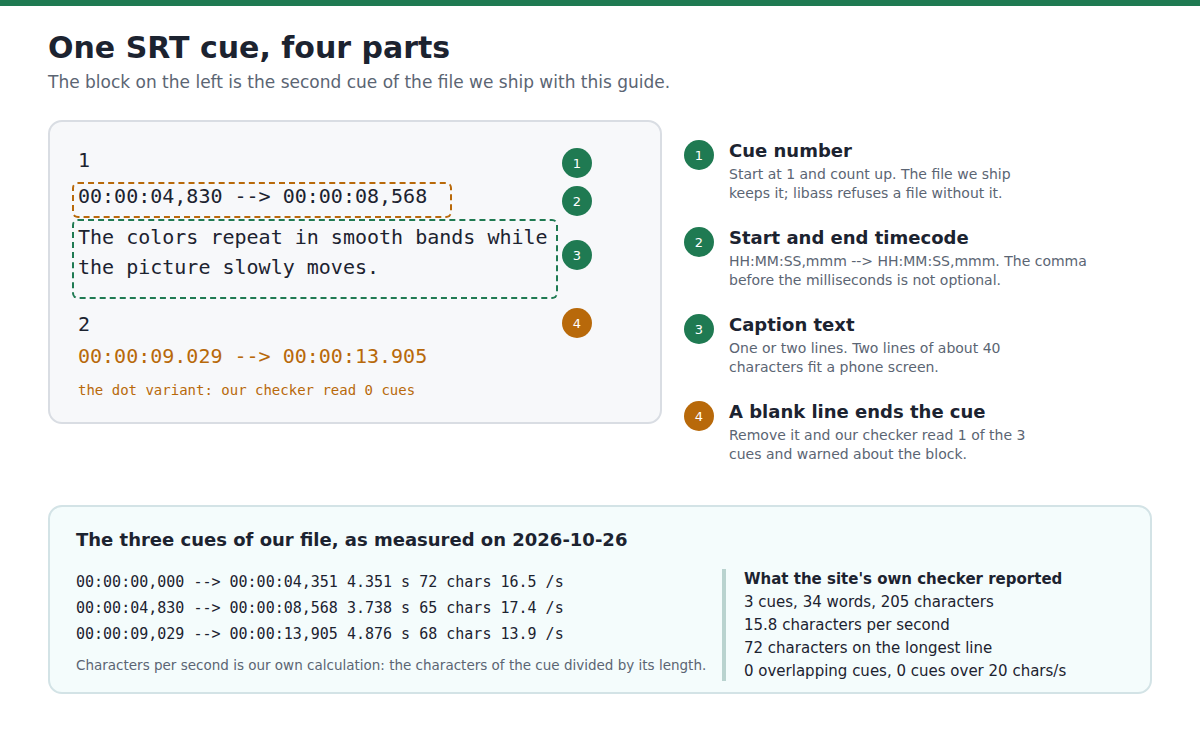
A caption block has four parts, in this order. Wikipedia's description of the SubRip format matches the file YouTube shows as an example (third party, read October 25, 2026): the subtitles are "numbered sequentially, starting at 1", the timecode is "hours:minutes:seconds,milliseconds" with two-digit units and three-digit fractions, and "The comma (,) is used for the decimal separator between seconds and milliseconds".
- The cue number, on its own line, starting at 1 and counting up.
- The timecode line: start time, then --> with spaces around it, then the end time.
- The caption text, on one or two lines. Two lines of about 40 characters each fit a phone screen.
- A blank line. It ends the cue. Delete it and the parser cannot tell where one caption stops and the next begins.
1
00:00:00,000 --> 00:00:04,351
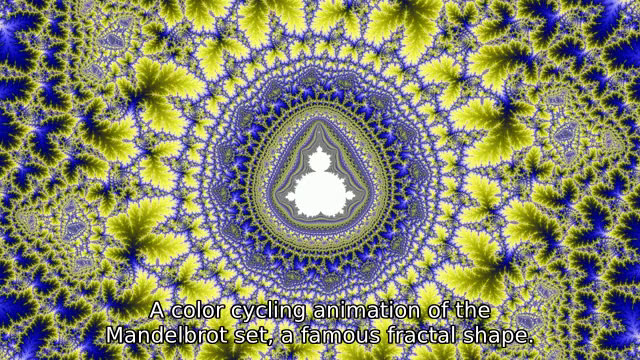
A color cycling animation of the Mandelbrot set, a famous fractal shape.

2
00:00:04,830 --> 00:00:08,568
The colors repeat in smooth bands while the picture slowly moves.

3
00:00:09,029 --> 00:00:13,905
This clip is public domain, released under CC0 on Wikimedia Commons.
How to write one: five steps
You can write an SRT file in any plain text editor, and you can get the timings from an automatic captioner or measure them yourself. The five steps below are how we built the file attached to this page, which you can download and test as-is.
- Write the caption text first, one sentence or one idea per cue. Our file has three cues and 34 words.
- Find the times. The fastest honest way is to measure the silences in your recording: this command prints every pause longer than 0.12 seconds below -38 dB.
- Write the cue as number, then the timecode line with a comma before the milliseconds, then the text, then a blank line. Keep the blank line; it is the part people drop.
- Check the file before you upload it. The free subtitle checker on this site reads it in your browser and reports the cue count, the reading speed and any overlapping cues.
- Upload it, or convert it if the target wants WebVTT. A browser <track> element needs .vtt; the same page converts the file in one click and keeps your caption text as written.
Our run of that command on October 26, 2026 found five silences. The first, third and fifth are short pauses inside a sentence; the second and fourth are the gaps between our three narration clips, and they became the cue boundaries 00:00:04,830 and 00:00:09,029. The last cue ends at 00:00:13,905 because that is where the recording ends.
ffmpeg -i narration.wav -af "silencedetect=n=-38dB:d=0.12" -f null -What happened when we broke the file in eight ways
One correct file, eight copies with one thing changed in each. Each copy went through two parsers: the site's own subtitle checker (the live production build, headless Chromium) and ffmpeg 6.1.1 with libass, which is what draws the caption onto the picture.
| Change we made | Koldflux subtitle checker | ffmpeg 6.1.1 burn-in |
|---|---|---|
| None (the shipped file) | 3 cues read, 15.8 chars/sec, 0 overlapping | Rendered |
| Dot instead of comma | 3 cues read | Rendered |
| Space before the dot (00:00:00 .000) | 0 cues read: every cue skipped as an unreadable timestamp | Refused: "Unable to open" |
| Cue numbers removed | 3 cues read | Refused: "Unable to open" |
| Blank line removed | 1 cue read, warning about the block | Rendered |
| UTF-8 BOM added | 3 cues read | Rendered |
| CRLF line endings | 3 cues read | Rendered |
| Two cues made to overlap | 3 cues, 1 overlapping cue warning | Rendered, cue 2 drawn one line higher |
| Last cue ends after the video | 3 cues, last cue 00:00:20,000 | Rendered |
Source: our own test on October 26, 2026, on the VPS with ffmpeg 6.1.1 (libass) and the live site in headless Chromium. Method: we copied the shipped file, changed exactly one thing in each copy, then ran every copy through both parsers and read the results. The commands, the exact error strings and the checker output for every copy are in the published log.
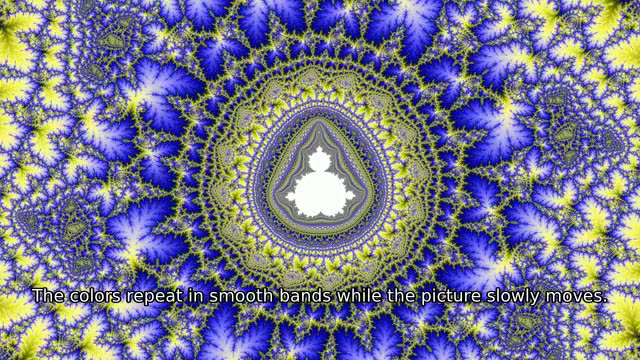
Read the rows together. A plain dot instead of the comma was accepted by both parsers, so the comma is the rule of the format but not what these two readers insist on; a space in front of the dot was not forgiven by either. The cue number is where they disagree: libass refused the file without it and our checker did not. The blank line is the other disagreement: our checker treats a missing blank line as a broken block and reads only the first cue, while libass carried on. A file that renders in one player and shows nothing in another is usually one of these, so check them first. Overlapping cues render, but libass moved the later caption up by one line and kept it there (frame below), which a bottom-band measurement cannot see.
Proof that the captions land on the right second
A subtitle file that parses is not the same as a subtitle file that is timed right, so we measured the second part too. We burned our file onto the video with ffmpeg and compared the band where the caption is drawn, frame by frame, with the same band of the video without captions.
| Second of the video | Caption expected | Mean difference from the caption-free frame |
|---|---|---|
| 00:01.0 | Yes (cue 1) | 25.44 |
| 00:03.0 | Yes (cue 1) | 25.26 |
| 00:04.5 | No (measured gap) | 3.57 |
| 00:05.5 | Yes (cue 2) | 18.78 |
| 00:08.0 | Yes (cue 2) | 19.65 |
| 00:09.5 | Yes (cue 3) | 20.48 |
| 00:12.0 | Yes (cue 3) | 20.48 |
Source: our own measurement on October 26, 2026. Method: for each second we cut the bottom 44 pixels of the frame, converted them to grey, and took the mean absolute difference per pixel (scale 0 to 255) between the burned video and the same second of the caption-free video. The 00:04.5 row is the control: that second falls in the measured gap between cue 1 and cue 2, and its 3.57 is the noise of re-encoding a busy picture, not a caption. Every second inside a cue differs by 18.8 to 25.4, about five to seven times the control.
A file you can download and test
Everything below was made by us on October 26, 2026. The video is an 8-second excerpt of a CC0 animation from Wikimedia Commons (Mandelbrot Set Color Cycling Video 1080p 4) with our own spoken narration; the subtitle file is the one whose timings we measured; the burned video is the result of running the subtitle filter over the first one.
- Download narration.srt (306 bytes): the subtitle file, in the format above.
- Download narration.vtt (290 bytes): the same three cues converted to WebVTT by the site's own converter, with a WEBVTT header and dot separators.
The two text files are the ones this page describes. Download the .srt, open it in any text editor, and change one number: that is the whole edit loop.
Check your own file before you upload it
The fastest way to know whether your file will work is to read it with a checker. The free Koldflux subtitle checker runs in your browser, so the file never leaves your device, and it reports the things that break captions on a phone: cues that flash past, overlapping timings and lines that are too long.
We ran it on our file on October 26, 2026: it read 3 cues, 34 words, 205 characters, an average reading speed of 15.8 characters per second, 72 characters on the longest line, 0 overlapping cues, and it reported that the last cue ends at 00:00:13,905, which is the same last cue we measured with ffmpeg. Run it on a file you made and compare.
What we did not test
We tested two parsers on one real file, not every player in the world. Here is exactly where the limits are.
We did not test a phone or a desktop player. We did not upload a file to YouTube, Instagram or TikTok, and we did not check how any of them handled our file. We could not find a readable, specific user report on phone playback of a hand-made .srt file, so we do not quote one. VideoLAN's own feature list names SubRIP among the text subtitle formats VLC reads and the project ships separate VLC apps for Android and iOS (official, read October 25, 2026), but that is the vendor's list, not our test.
We did not test style markup, the <b>, <i> and <u> tags that some tools add, positioning, right-to-left scripts, or non-Latin characters. YouTube says it does not recognize markup in .srt files (official, read October 25, 2026).
Our narration is synthetic speech from a local text-to-speech model and our footage is a CC0 animation with the last frame held for 6 seconds, so the timings are clean. A recording with music, room echo or two speakers talking over each other is a harder timing job and we did not test it.
What to do next
The situation you are in decides the next step.
- The platform wants a .vtt file, or your web player shows nothing: convert the file, because a browser <track> element only reads WebVTT.
- Your captions show up but drift out of sync with the speech: the timings are wrong, not the format, so shift them rather than rebuild the file.
- A caption is too long to read on a phone: split the cue into two and shorten the lines, then check the reading speed again.
- The platform accepts the file but shows no captions: check the blank line between cues first, then the comma before the milliseconds.
Do it in your browser
Free Koldflux tool, no account needed.
Questions people ask
What is an SRT file used for?
It carries caption text and the times each caption should appear, so a video platform can show subtitles without you typing them into the player. YouTube accepts .srt, .sbv, .vtt and .ttml, and for .srt it asks for plain UTF-8 with no style markup (official, read October 25, 2026).
What is the difference between SRT and VTT?
SRT uses a comma before the milliseconds and has no header. VTT starts with a WEBVTT line and uses a dot, and it can carry styling and positioning. Our converter makes one from the other without changing your text. See our SRT against VTT page.
Do I really need the cue numbers in an SRT file?
In our test of one file, deleting the numbers made ffmpeg 6.1.1 with libass refuse the file ("Unable to open"), while the site's own checker still read all three cues. Keep the numbers; they cost nothing and one parser needed them.
Why do my captions not appear?
In order of what we found: a stray space in the timecode stops two parsers from reading the file at all, a missing cue number stops one of them, and a missing blank line between cues leaves a reader with one cue out of three. All three are quick to check in a text editor.
How long should one caption stay on screen?
Our file averages 15.8 characters per second across the three cues, and the site's checker flags anything above roughly 20 characters per second as faster than comfortable reading. It reports that figure as a guideline, not a platform rule. Two lines of about 40 characters fit a phone screen.
Can I write an SRT file in Notepad or TextEdit?
Yes. It is a plain text file and any text editor works. Save it as UTF-8 with the .srt extension, and make sure the editor did not add smart quotes or change the arrow into something else.
Related
Sources and how we checked
- YouTube Help: Supported subtitle and closed caption files (official, read October 25, 2026) (checked 2026-10-25)
- YouTube Help: Add subtitles and captions (official, read October 25, 2026) (checked 2026-10-25)
- Wikipedia: SubRip, format section (third party, read October 25, 2026) (checked 2026-10-25)
- VLC desktop user documentation 3.0: Subtitles, supported formats (official, read October 25, 2026) (checked 2026-10-25)
- VideoLAN: VLC features, text subtitle formats and the Android and iOS apps (official, read October 25, 2026) (checked 2026-10-25)
- FFmpeg Filters documentation: subtitles filter (official, read October 25, 2026) (checked 2026-10-25)
- Koldflux test log: ffmpeg 6.1.1 commands, error strings and the checker output for nine files (our measurement, October 26, 2026) (checked 2026-10-25)
- Riverside: How to Create an SRT File (third party, read October 25, 2026 for coverage comparison, not run) (checked 2026-10-25)
- KlipTools: How to Create SRT Subtitle Files (third party, read October 25, 2026 for coverage comparison, not run) (checked 2026-10-25)
- VexaScribe: How to Create an SRT File (third party, read October 25, 2026 for coverage comparison, not run) (checked 2026-10-25)
We made one real test: a CC0 animation from Wikimedia Commons (Mandelbrot Set Color Cycling Video 1080p 4), 8.0 s of video with its last frame held for 6 s, to which we added 13.9 s of narration spoken by a local text-to-speech model. We measured the narration with ffmpeg 6.1.1 silencedetect and wrote the three cue boundaries from the measured gaps, then made nine copies of that file (one correct, eight with one thing changed each) and ran every copy through two parsers: the live Koldflux subtitle checker in headless Chromium and the ffmpeg subtitles filter with libass. We burned the correct file onto the video, compared the caption band of seven frames with the caption-free video, and converted the file to WebVTT with the site's own converter. Commands, outputs and the exact error strings are in the published log. The three competitor guides above were read for coverage comparison and were not run; each of them describes the format, and none of them ships a working file, a measured timing or a test of what a renderer does with a broken file. We could not find a specific, readable user report on phone playback of a hand-made .srt file, so the page says the phone case is not tested. SubRip, WebVTT, YouTube, VLC, VideoLAN and FFmpeg are trademarks of their owners; Koldflux is not affiliated with or endorsed by them.