Transcripts guide
How to get a transcript of a YouTube video
Short answer
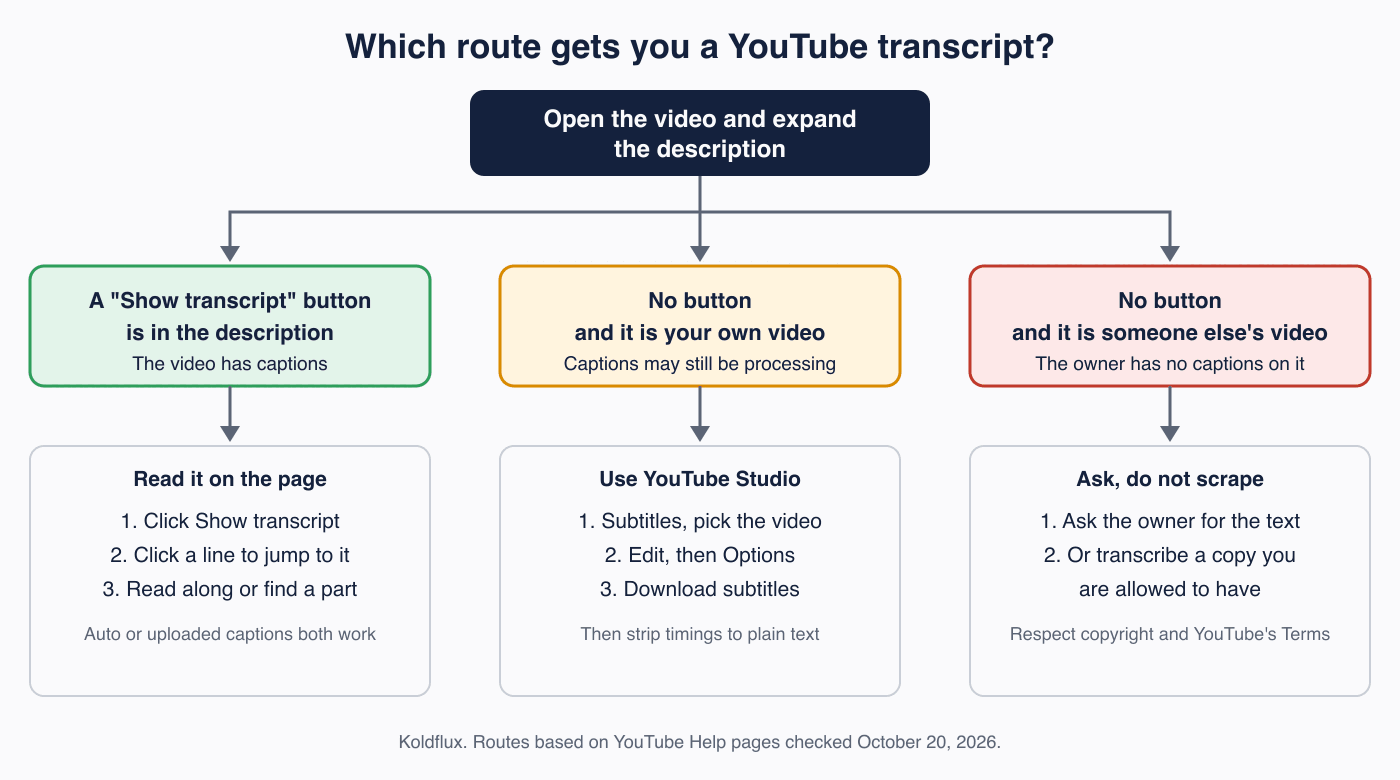
Open the video, expand the description and click Show transcript. YouTube says you can see the full transcript of any video that has captions, and it scrolls with the video as you watch. If there is no button, the video has no captions yet: on your own video, download or generate them in YouTube Studio; on someone else's video, ask the owner instead of scraping it.
Key takeaways
- Official route: description, then Show transcript. Click any line to jump to that moment.
- The transcript is built from captions, so it exists only when the video has captions. YouTube generates automatic captions for many languages, but not for every video.
- Automatic captions can misrepresent speech (accents, background noise, overlapping speakers). YouTube tells creators to review and edit them.
- Your own video: Studio, Subtitles, Edit, Options, Download subtitles gives you the caption file.
- Someone else's video with no transcript: YouTube's Terms restrict downloading content except as the Service authorizes or with permission, so ask the owner.
How do you see the transcript of a YouTube video?
This is the route YouTube documents on its Help page "View video transcripts" (checked October 20, 2026).
- Open the video on youtube.com.
- Expand the video description (under the title, select the description box).
- In the description, click Show transcript.
- Read along: the transcript scrolls to the current caption line as the video plays.
- Click any line of caption text to jump to that part of the video.
YouTube adds that you can also use the transcript to find video chapters when they exist, and other information such as people and places mentioned and affiliate products. YouTube's page describes the desktop description box; it does not give separate steps for the mobile app, so we do not document one here.
Why is there no Show transcript button?
Because the transcript is just the video's captions laid out as text, a missing button means there are no captions to show. YouTube lists these reasons why a video may not have automatic captions (YouTube Help, "Use automatic captioning", checked October 20, 2026):
- The captions are not ready yet because YouTube is still processing complex audio. They may not be ready when the video is first uploaded.
- Automatic captions do not support the language spoken in the video.
- The video is too long.
- The video has poor sound quality, or YouTube does not recognize the speech.
- There is a long silence at the beginning of the video.
- Several speakers overlap, or several languages are spoken at the same time.
The page does not list a maximum length, so we do not state one. The practical test is the button: no button means no captions. If the video is new, check again later before assuming the answer is final.
Is the transcript from automatic captions or uploaded captions?
It can be either. YouTube generates automatic captions with speech recognition and publishes them on the video when they are available; the owner can also upload their own caption file or add captions in Studio. The transcript shows whichever captions the video has. YouTube does not label the source inside the transcript panel on its Help page, so judge by quality.
| Automatic captions | Uploaded or edited captions | |
|---|---|---|
| Made by | YouTube speech recognition (machine learning) | The creator or a caption vendor |
| Accuracy | Can misrepresent speech because of mispronunciations, accents, dialects or background noise | As good as the person who wrote or reviewed them |
| Languages | 67 languages listed by YouTube, including English, Spanish, Hindi and Arabic | Any language the creator provides |
| Live streams | English only, and not kept after the stream: new captions are generated for the recording | Not covered on the YouTube page we checked |
| What YouTube advises | Review and edit them; add professional captions first | Preferred by YouTube over automatic |
Treat an automatic transcript as a draft: names, numbers, product terms and anything said over music are where it fails first. For quotes, listen to the clip again.
How do you download the transcript of your own YouTube video?
If the video is yours, the clean route is YouTube Studio, which gives you the caption file. These are the steps from YouTube Help, "Edit or remove captions" (checked October 20, 2026):
- Sign in to YouTube Studio.
- From the left menu, select Subtitles.
- Click the video you want.
- Under Subtitles, click Edit next to the language you want.
- Click Options and select Download subtitles. Your browser downloads a file with the caption track.
YouTube's page gives no separate download path for automatic captions, so the same steps apply. Editing automatic captions creates a new caption track (Duplicate and edit), which lets you fix the wording before you export.
The download is a timed caption file, not plain text. To turn it into paragraphs for show notes or a blog post, drop it into our free subtitle to transcript tool: it strips timings, line numbers and tags in your browser, and nothing is uploaded. It cannot restore sentence breaks, because caption files do not have them.
Free tool:Subtitle to transcript
What if your own video has no captions at all?
Check Studio first: processing can take time, and unsupported languages or poor audio produce nothing. If the video still has no track, you have two honest options.
- Add captions in Studio. Subtitles, select the video, Add language, then Add. YouTube offers uploading a file with or without timing and Auto-sync, where you paste the text and YouTube times it to the audio. YouTube says the transcript must be in a language its speech recognition supports and in the language spoken, and recommends against Auto-sync for videos over an hour or with poor audio.
- Transcribe the original recording yourself. Our free auto subtitle generator transcribes a video or audio file on your device, with no upload, and saves SRT or VTT. Pair it with the subtitle to transcript tool for plain text. In our own test of that generator (reviewed October 11, 2026) 4.8% of the words were wrong, so proofread before publishing.
Can you get the transcript of someone else's video?
Reading it on the page through Show transcript is what YouTube built the feature for. Copying, downloading or republishing is different. YouTube's Terms of Service (effective December 15, 2023, checked October 20, 2026) say you are not allowed to "access, reproduce, download, distribute, transmit, broadcast, display, sell, license, alter, modify or otherwise use any part of the Service or any Content" except as expressly authorized by the Service, or with prior written permission from YouTube and, if applicable, the rights holders.
A transcript of a video is also a copy of its spoken words, which belong to the creator. This is not legal advice, but the safe habits are simple:
- Use the transcript to read, search and find a moment. That is the feature working as designed.
- Quote briefly and credit the video and the creator. Do not republish a whole transcript as your own article.
- If you need the full text for repurposing, ask the owner. Many creators will share it or let you use it with credit.
- If there is no transcript, do not use a downloader to pull the audio. Koldflux does not offer one and this page will not point you to one.
A free converter on this site cannot fetch a YouTube video from a link, and we do not claim it can. What it can do is turn a caption file you legitimately have into plain text.
Which languages and live streams have automatic captions?
YouTube lists automatic captions for 67 languages (counting Cantonese/Hong Kong as one entry) on long-form videos and Shorts, among them Arabic, Chinese, English, French, German, Hindi, Indonesian, Japanese, Korean, Portuguese, Russian, Spanish, Turkish and Vietnamese (YouTube Help, checked October 20, 2026). If a video has several audio tracks, the automatic captions follow the default language.
Live streams are narrower: automatic captions for live are English only, can be turned on only for individual streams, and are being rolled out to English channels with more than 1,000 subscribers streaming at normal latency. When the stream ends, the live captions do not remain; YouTube generates new ones from the recording, and they may differ from what viewers saw live.
Does the transcript help with SEO or repurposing?
Search and repurposing are the two common reasons people want the text. YouTube does not say in the pages we checked that uploading a transcript changes ranking, so we make no ranking claim. The proven value is practical: a cleaned transcript becomes show notes, a blog post, pull quotes and a shortlist of moments for Shorts. For the cleanup step see our guide on turning subtitles into a clean transcript, and for clips see turning a long YouTube video into a vertical Short.
Do it in your browser
Free Koldflux tools, no account needed.
Subtitle to transcriptAuto subtitle generatorVideo script generator
Questions people ask
How do I get a transcript of a YouTube video?
Open the video, expand the description and click Show transcript. YouTube says you can see the full transcript of any video that has captions.
Why does a YouTube video have no transcript?
It has no captions. Automatic captions may still be processing, may not support the language, or may fail on long videos, poor audio, long silence at the start, or overlapping speakers or languages.
Are YouTube transcripts accurate?
Automatic ones can misrepresent speech because of mispronunciations, accents, dialects or background noise, and YouTube tells creators to review them. Captions uploaded or edited by the creator are only as accurate as their author.
How do I download captions for my own video?
In YouTube Studio open Subtitles, pick the video, click Edit next to the language, then Options and Download subtitles.
Can I turn the downloaded caption file into plain text?
Yes. Our subtitle to transcript tool removes timings, line numbers and tags from an SRT or VTT file in your browser, without uploading it.
Can I transcribe someone else's YouTube video?
You can read its transcript on the page if it has one. Downloading or republishing needs permission under YouTube's Terms and copyright law, so ask the creator, quote briefly and credit them.
Does YouTube offer a transcript for live streams?
Live automatic captions are English only and limited to normal latency streams on enabled channels. After the stream, YouTube generates new captions from the recording.
Related
Sources and how we checked
- YouTube Help: View video transcripts (checked 2026-10-20)
- YouTube Help: Use automatic captioning (checked 2026-10-20)
- YouTube Help: Edit or remove captions (download steps) (checked 2026-10-20)
- YouTube Help: Add subtitles and captions (checked 2026-10-20)
- YouTube Terms of Service (effective December 15, 2023) (checked 2026-10-20)
We read each YouTube Help page and the YouTube Terms of Service listed above on October 20, 2026 and state steps, reasons and limits only as they appear there. Where YouTube does not document something (mobile steps, a maximum video length, labeling of caption source), we say so instead of guessing. The route diagram is our own.