Free downloads
Safe zone templates for TikTok, Instagram Reels and YouTube Shorts
Short answer
Download the 1080x1920 transparent PNG below, drop it on a track above your video, and keep text and logos inside the dashed box. Each template uses the margins the platform publishes for its vertical ads: TikTok 12.5% top and 34.375% bottom, Instagram Reels 14% top and 35% bottom, YouTube Shorts 15% top and 35% bottom. If you post the same video to all three, use the combined template: 288 px top, 672 px bottom, 120 px left, 192 px right.
Key takeaways
- Eight PNGs: a tinted and a line-only version for TikTok, Instagram Reels, YouTube Shorts and all three combined.
- Every margin is printed on the overlay in pixels, so you can check it against your own timeline.
- The numbers come from the platforms' own ad files and help pages, not from guesswork. They describe ads; organic posts can differ slightly.
- Hide or delete the overlay track before you export, or the red guide ends up in your video.
Which safe zone template do I download?
If the video goes to one platform, download that platform's template. If you cross-post one export to TikTok, Reels and Shorts, download "All three": it uses the largest margin on each edge, so a caption that fits there fits everywhere.
Pick tinted when you want to see the danger area at a glance while editing. Pick line only when the red tint hides too much of your footage; the dashed outline marks the same edge.
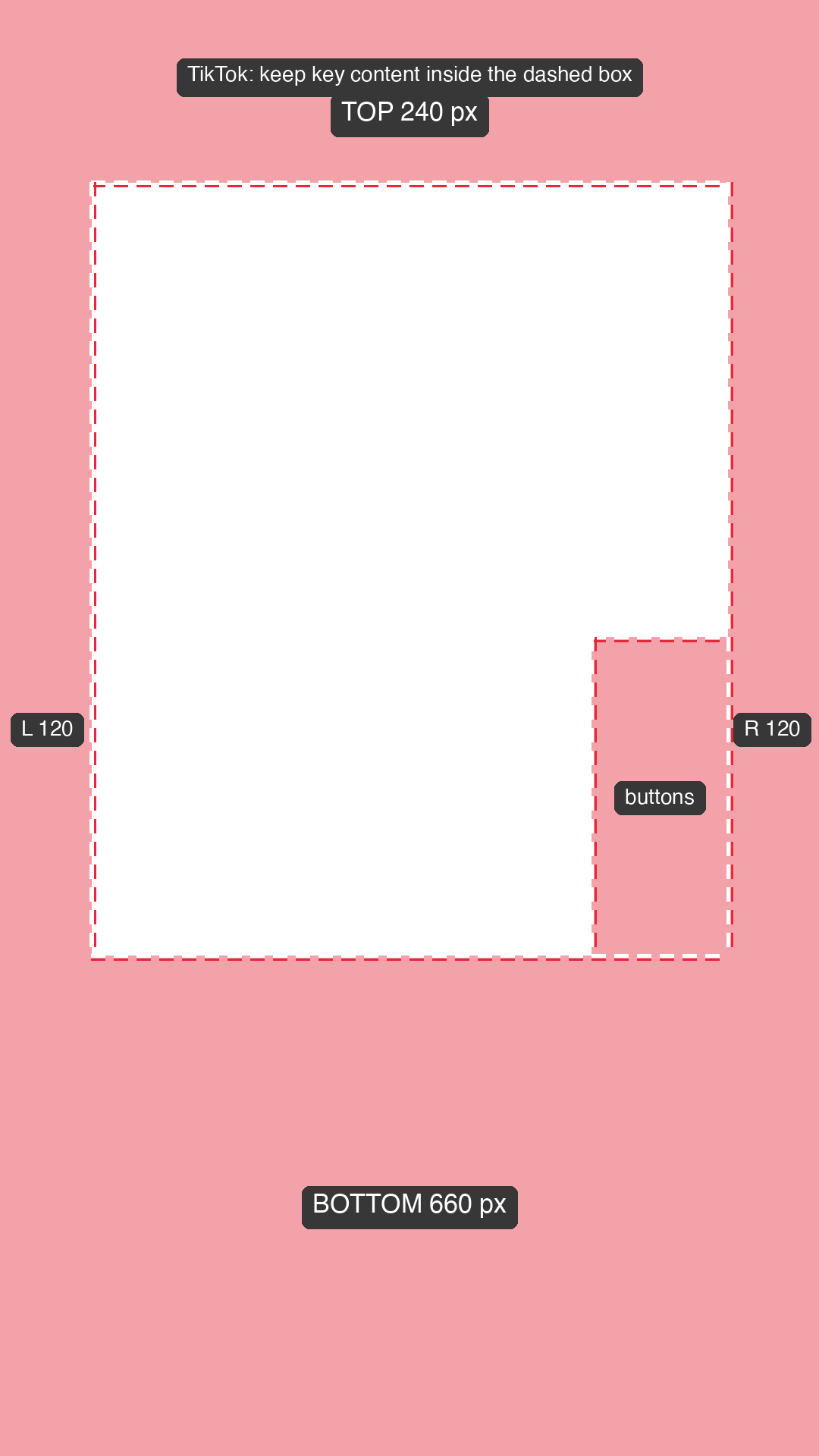
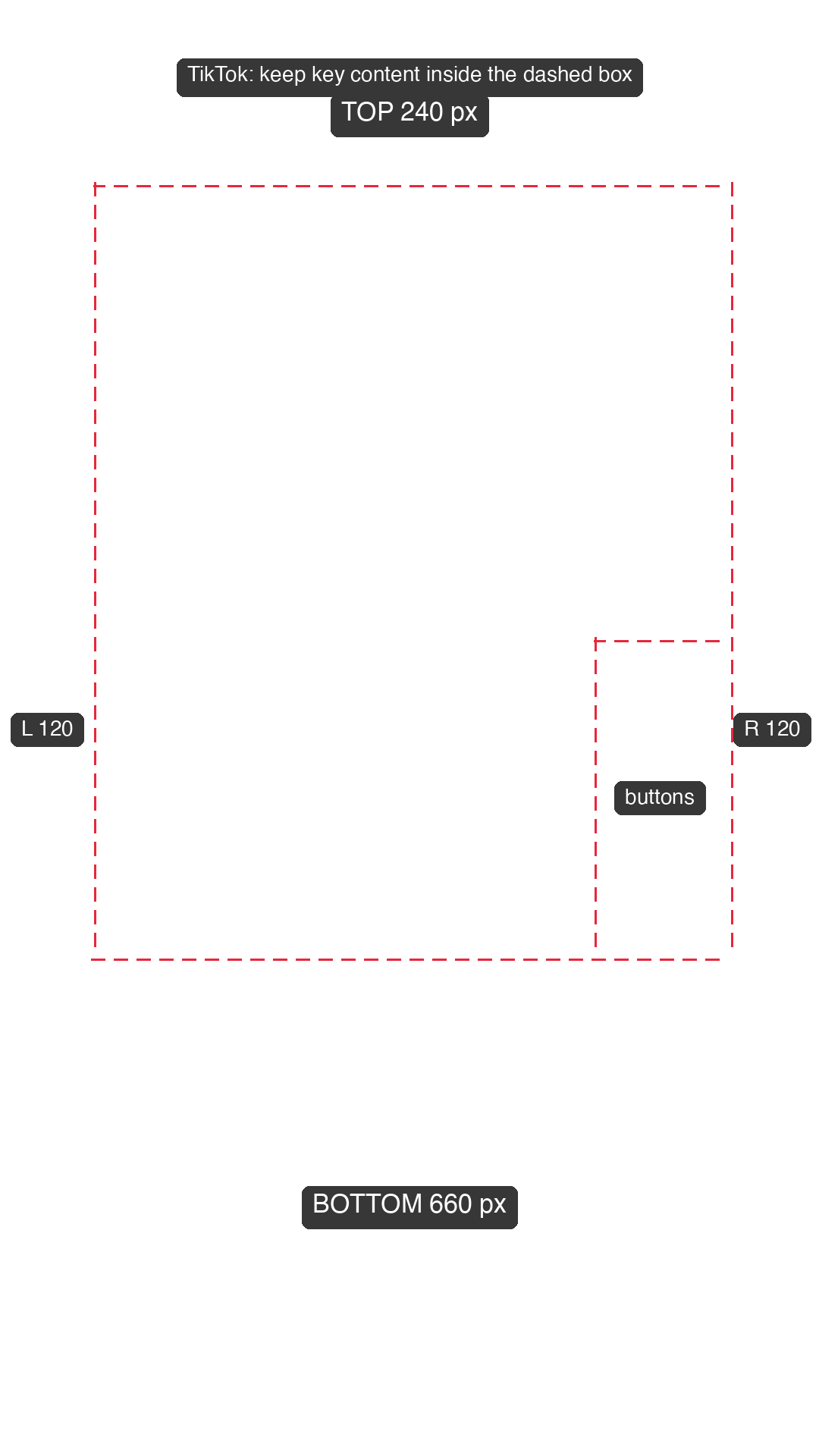
Download the TikTok safe zone template
TikTok publishes safe zone files for In-Feed ads. The standard version leaves 12.5% at the top, 34.375% at the bottom and 11.111% on each side. A column of buttons (like, comment, share) covers the right side from about 44% to 66% of the height, so the template marks it as a separate no-text box.
Download the Instagram Reels safe zone template
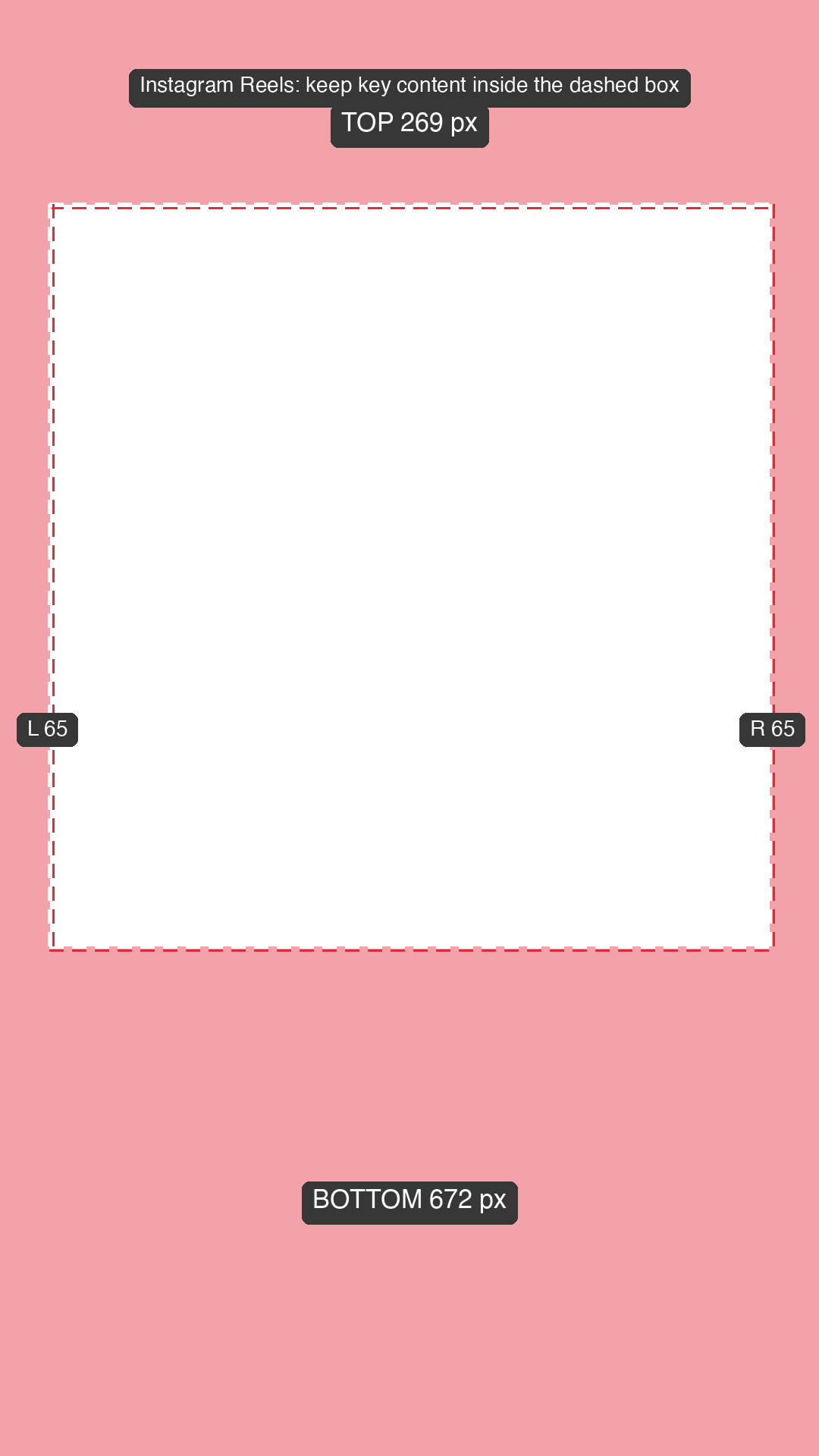
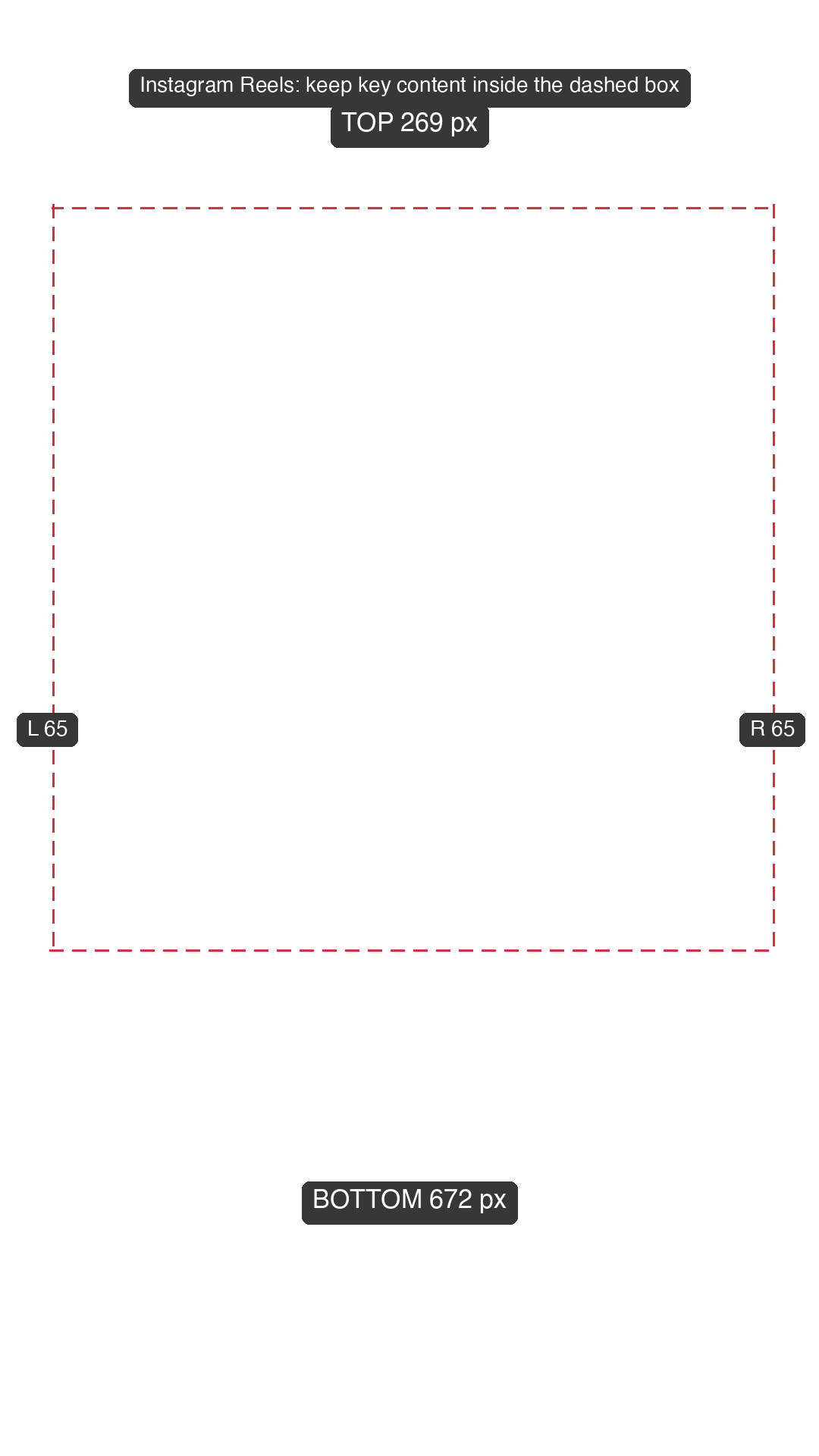
Meta asks you to leave at least 14% of the top, 35% of the bottom and 6% on each side free of text, logos and other important elements. On a 1080x1920 frame that is 269 px at the top, 672 px at the bottom and 65 px on each side.
Download the YouTube Shorts safe zone template
Google's vertical video ad overlay leaves 288 px at the top, 672 px at the bottom, 48 px on the left and 192 px on the right of a 1080x1920 frame. The wide right margin is where the action buttons sit.
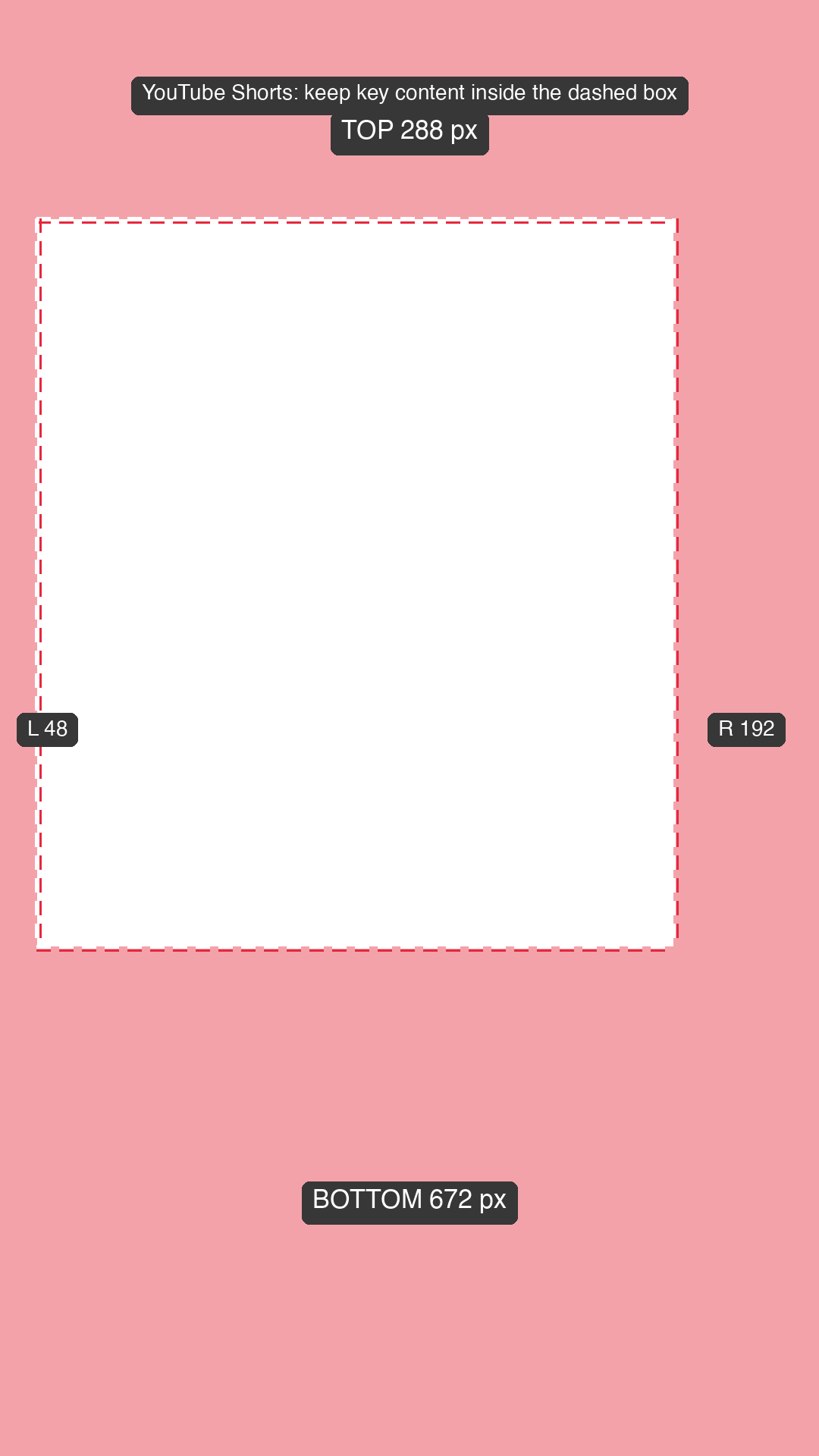
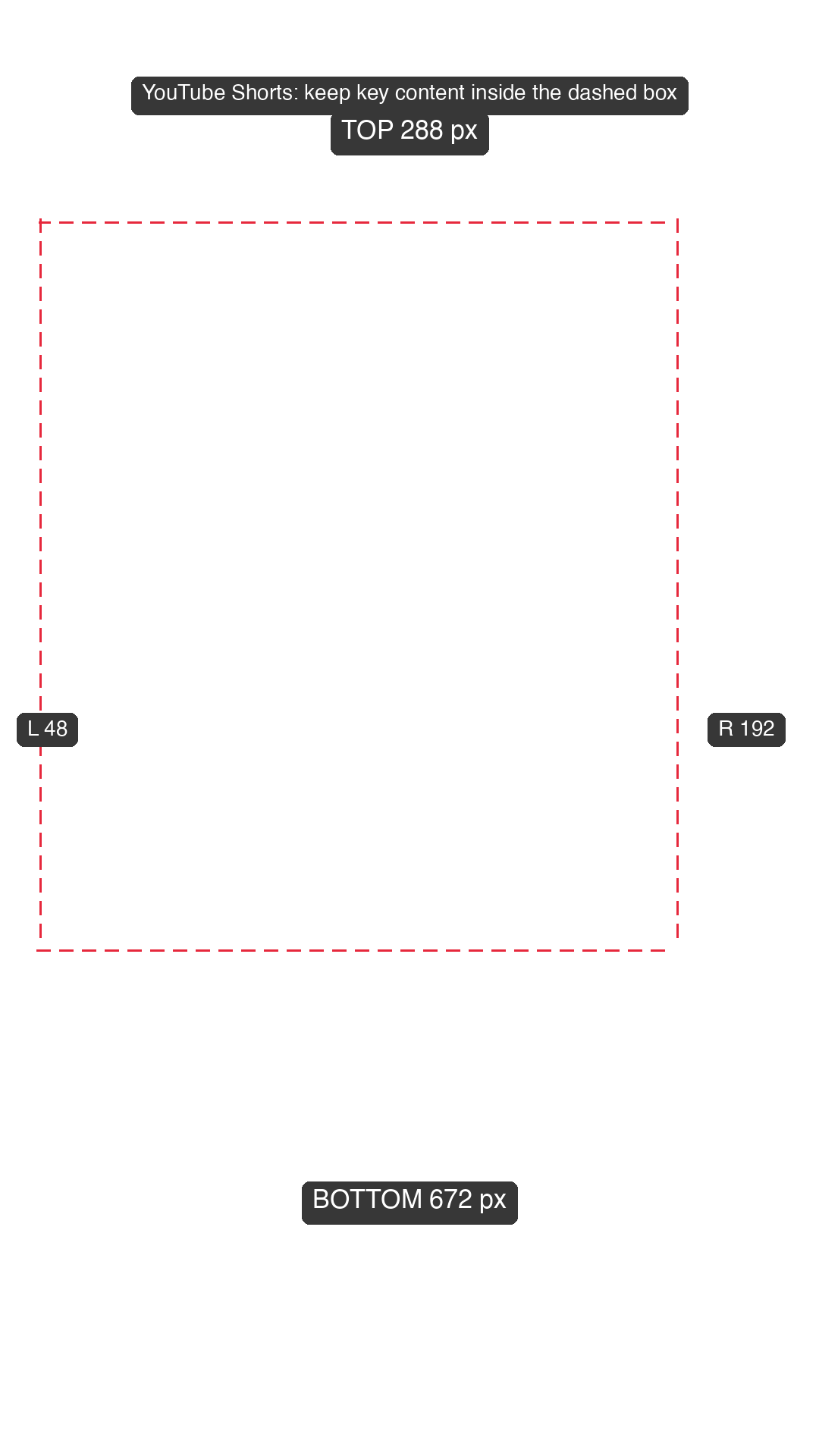
Download the combined template for posting everywhere
This overlay takes the largest margin of the three on each edge: top from YouTube (288 px), bottom from YouTube and Meta (672 px), left from TikTok (120 px) and right from YouTube (192 px). The safe box is 768 x 960 px. It is stricter than any single platform, which is the price of one export that works on all three.
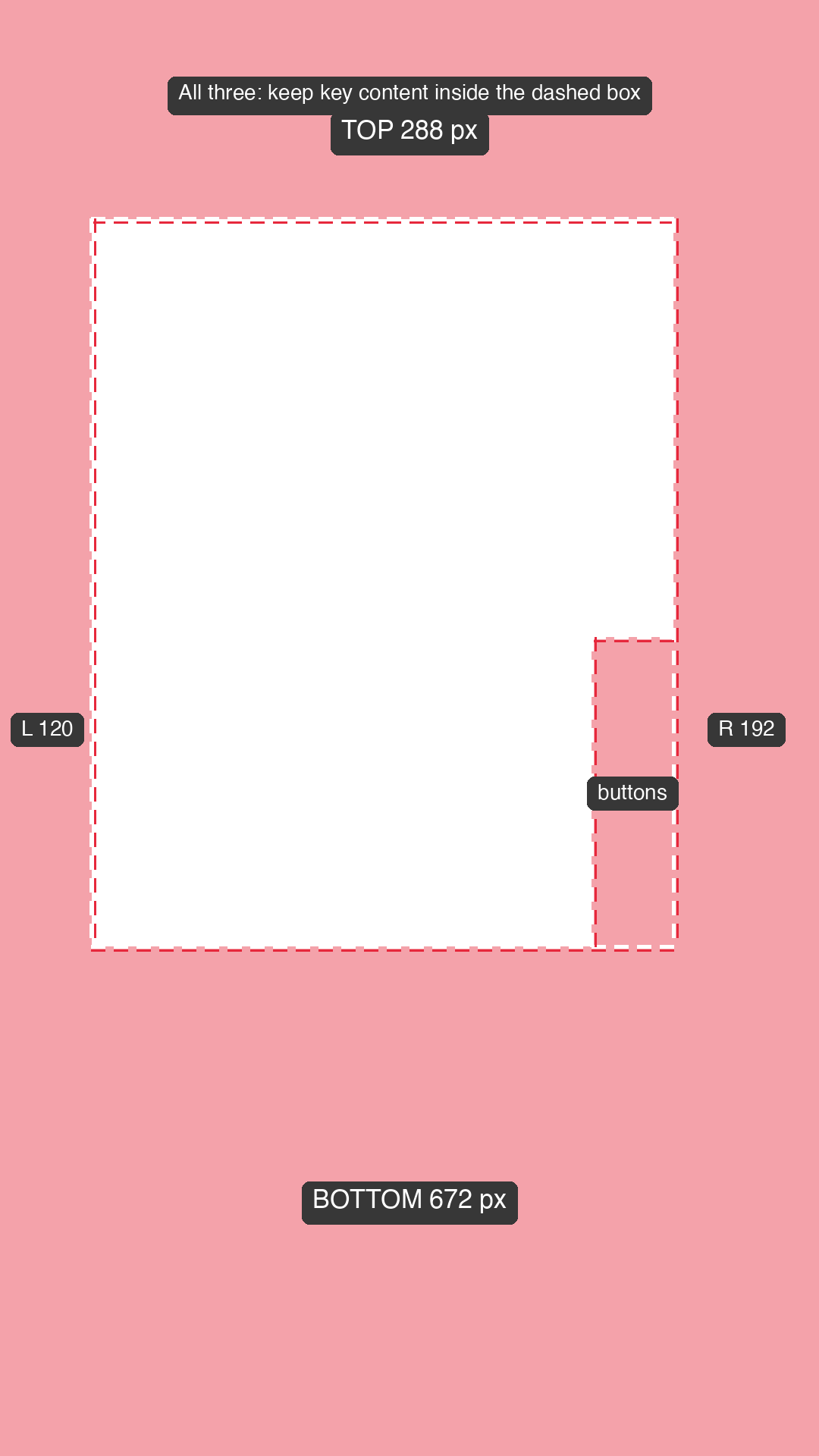
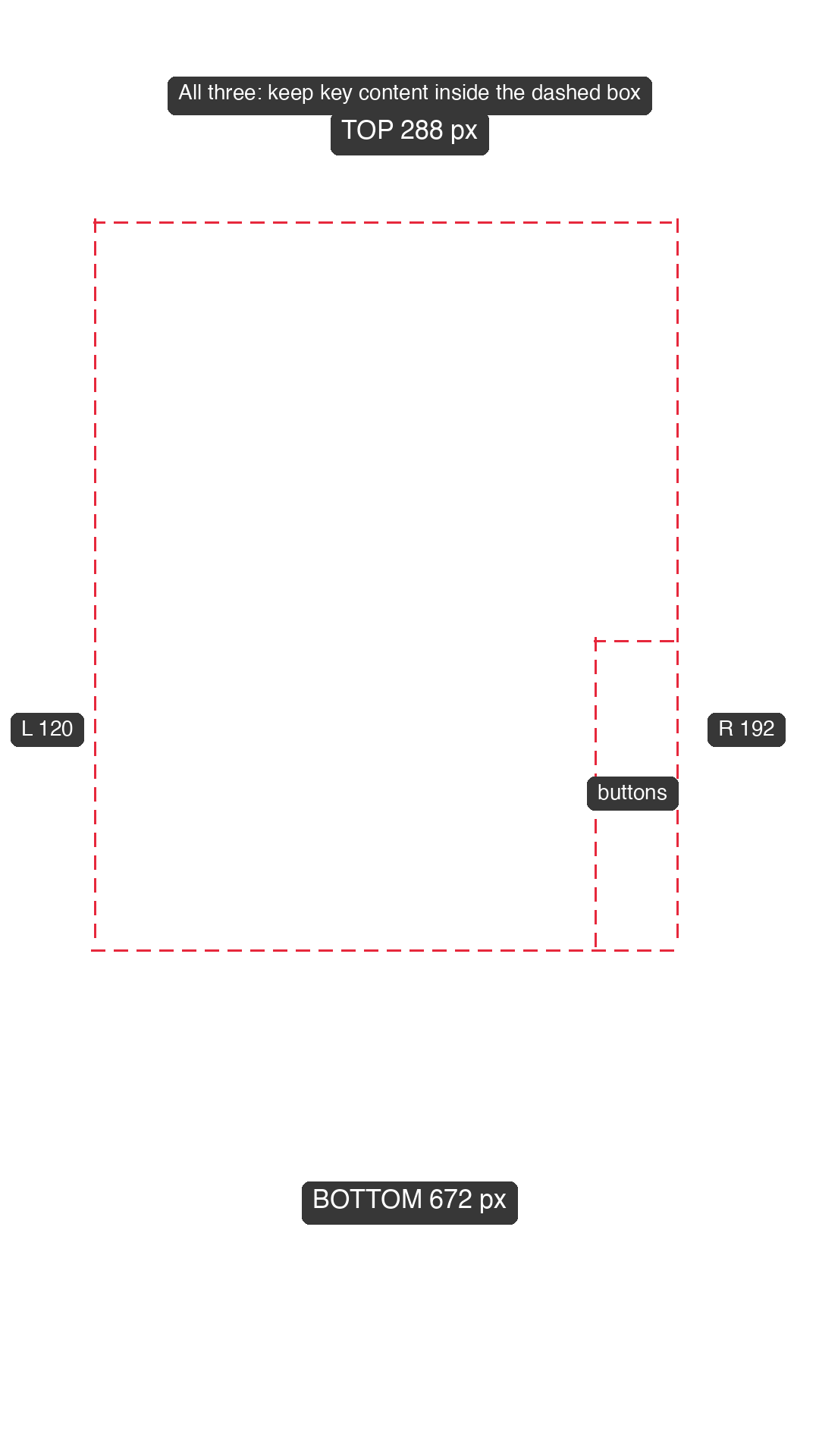
What are the exact safe zone numbers?
| Platform | Top | Bottom | Left | Right | Source |
|---|---|---|---|---|---|
| TikTok (In-Feed, standard) | 12.5% (240 px) | 34.375% (660 px) | 11.111% (120 px) | 11.111% (120 px) | TikTok Ads Help |
| Instagram Reels | 14% (269 px) | 35% (672 px) | 6% (65 px) | 6% (65 px) | Meta Ads Guide |
| YouTube Shorts (vertical ads) | 15% (288 px) | 35% (672 px) | 4.444% (48 px) | 17.778% (192 px) | Google Ads Help |
| All three combined | 15% (288 px) | 35% (672 px) | 11.111% (120 px) | 17.778% (192 px) | Largest of the three |
Meta words its numbers as "at least", and the Google help page publishes the margins only inside its overlay image, so we measured the pixels of that file. Percentages scale to any size: for a 1440x2560 export multiply each pixel value by 4/3.
Does the TikTok bottom margin change with a longer caption?
Yes, for ads that carry an anchor (the business name and call-to-action block). TikTok's files for In-Feed ads with an anchor grow the bottom margin with the caption length. Scaled to 1080x1920, the bottom margin is 812 px for a one-line caption, 878 px for two lines, 946 px for three and 1,014 px for four. Our TikTok template shows the standard version without an anchor; if you run anchored ads, use the line-only version and keep text above these heights.
How do I use a safe zone overlay in CapCut?
- Set the project, timeline or design to 1080 x 1920 (9:16) and add your video.
- Import the PNG and place it on the top video track, above your footage. Stretch it to the full length of your edit and make sure it fills the whole frame.
- Lock the overlay track so you do not move it by accident, then place text, stickers and faces inside the dashed box.
- Before you export, hide the overlay track or delete the PNG clip so the guide is not burned into the video.
How do I use a safe zone overlay in Premiere Pro?
- Set the project, timeline or design to 1080 x 1920 (9:16) and add your video.
- Import the PNG and place it on the top video track, above your footage. Stretch it to the full length of your edit and make sure it fills the whole frame.
- Lock the overlay track so you do not move it by accident, then place text, stickers and faces inside the dashed box.
- Before you export, hide the overlay track or delete the PNG clip so the guide is not burned into the video.
How do I use a safe zone overlay in DaVinci Resolve?
- Set the project, timeline or design to 1080 x 1920 (9:16) and add your video.
- Import the PNG and place it on the top video track, above your footage. Stretch it to the full length of your edit and make sure it fills the whole frame.
- Lock the overlay track so you do not move it by accident, then place text, stickers and faces inside the dashed box.
- Before you render, disable or delete the overlay track so the guide is not burned into the video.
How do I use a safe zone overlay in Final Cut Pro?
- Set the project, timeline or design to 1080 x 1920 (9:16) and add your video.
- Import the PNG and place it in a lane above your footage. Stretch it to the full length of your edit and make sure it fills the whole frame.
- Place text, stickers and faces inside the dashed box.
- Before you export, hide or delete the overlay so the guide is not burned into the video.
How do I use a safe zone overlay in Canva?
- Set the project, timeline or design to 1080 x 1920 (9:16) and add your video.
- Import the PNG and place it on top of your video and stretch it to the full page.
- Lock the overlay element so you do not move it by accident, then place text, stickers and faces inside the dashed box.
- Before you download, delete the overlay (or work on a duplicate page), because Canva has no hide switch for elements we could confirm.
What does the platform interface cover on my video?
Three things sit on top of a vertical video: the action buttons (like, comment, share) down the right side, the caption, name and sound line along the bottom, and the tabs and search bar across the top. Each template shades those areas, and the pixel size of each margin is printed on it.
The right-hand column is the one people forget. On TikTok it reaches from roughly 44% to 66% of the frame height, and on Shorts the right margin is 192 px, more than four times the left.
Where do I put text, subtitles and faces?
- Subtitles: center them horizontally inside the box, above the bottom margin. Pick the lowest line that still sits inside the dashed outline.
- Faces and the main subject: keep them in the upper-middle of the box, away from the button column.
- Logos and call-to-action text: keep them at least a few pixels inside the dashed line, not on it.
- Background art and video can run to the edges. Only text, logos and faces need to stay inside.
What are the common safe zone mistakes?
- Checking only one platform, then cross-posting. Use the combined template instead.
- Using a 16:9 or square clip without re-framing it to 9:16 first.
- Exporting with the overlay track still visible.
- Treating the percentages as laws. They are the platforms' ad guidance, and organic layouts can differ.
Do safe zones apply to organic posts as well as ads?
The platforms publish exact margins for ads. Organic posts use similar interface layers (username, caption, buttons), but we found no official numbers for organic posts on any of the three, so treat the templates as a conservative guide, not a rule. When a platform ships a new interface, the measured margins can shift; we recheck them against the official files and date the check at the top of this page.
Where the template does not fit: horizontal and square videos, carousels, and any post where the platform lets you move the caption. For other platforms, see the safe zone pages linked below.
Do it in your browser
Free Koldflux tools, no account needed.
Safe zone calculatorTikTok safe zone overlayInstagram Reels safe zone overlayYouTube Shorts safe zone overlay
Questions people ask
What size is a TikTok safe zone template?
The TikTok template is 1080x1920 pixels, the 9:16 frame. Keep text and logos inside the box that leaves 240 px at the top, 660 px at the bottom and 120 px on each side.
Is there a safe zone template for Instagram Reels?
Yes. Download the Reels PNG above. It marks 269 px at the top, 672 px at the bottom and 65 px on each side, from Meta's guidance of at least 14% top, 35% bottom and 6% sides.
What is the YouTube Shorts safe zone?
On a 1080x1920 frame, keep key content 288 px from the top, 672 px from the bottom, 48 px from the left and 192 px from the right, which is the area Google's vertical ad overlay leaves free.
Can I use one template for TikTok, Reels and Shorts?
Yes. The combined template uses the largest margin on every edge: 288 px top, 672 px bottom, 120 px left and 192 px right. The safe box is smaller than any single platform's, but it is safe on all three.
Are the PNG files transparent?
Yes. They are 1080x1920 PNGs with a transparent background; only the guide lines, the optional red tint and the margin labels are drawn.
Will the overlay show up in my exported video?
Only if you leave it visible. Hide the overlay track or delete the clip before exporting.
Does this work for 1440x2560 video?
The margins are proportions, so they carry over. Multiply the pixel values by 4/3 for 1440x2560, or scale the PNG to the frame.
Related
Sources and how we checked
- TikTok Auction In-Feed Ads: Safe zone files (TikTok Ads Help) (checked 2026-10-03)
- Sales Video Ad Specs on Instagram Reels (Meta Ads Guide) (checked 2026-10-03)
- About video ad specs: vertical Safe Zone overlay (Google Ads Help) (checked 2026-10-03)
Margins come from the platforms' published ad files and help pages (dates in Sources). The YouTube Shorts margins are measured from Google's official 1080x1920 overlay image. The overlays are drawn by a script from those numbers, so every pixel value printed on them matches the table. The app steps are deliberately generic (top video track, lock, hide before export) because we could not confirm each app's menu names from official help.