Phone video guide
How to trim, cut and crop a video on iPhone (Photos app)
Short answer
To trim a video on iPhone, open it in the Photos app, tap Edit, drag either end of the frame viewer under the video to set the start and stop times, tap Done, then tap Save Video (keeps only the trimmed version) or Save Video as New Clip (keeps both). To crop, tap Edit, use the crop tool, drag the corners or pick a ratio such as Square or 9:16, then tap Done. To cut out the middle, split the clip and delete the piece in iMovie. These steps are taken from Apple Support pages; we have not tested them on a device.
Key takeaways
- Trim: Photos, open the video, Edit, drag the frame viewer ends, Done, then Save Video or Save Video as New Clip (Apple).
- Save Video keeps only the trimmed version. Save Video as New Clip keeps the original and adds the trimmed one. Apple says Revert to Original on a new clip removes your other edits, such as exposure or filters, but does not restore the trimmed length (support.apple.com/104968).
- To undo a trim you saved with Save Video: open the video, tap Edit, tap Revert (Apple).
- Crop: Edit, crop tool, drag the rectangle corners or pinch. The tool keeps the original aspect ratio until you tap the lock to unlock it. Presets include Square, Wallpaper, 9:16 and 5:7 (Apple).
- Middle cut: not described for Photos. In iMovie for iPhone, Apple documents Split and Delete (support.apple.com/guide/imovie-iphone/knac788312/ios).
- On a phone or computer that is not an iPhone, the free Koldflux trimmer, cropper and merge tool work in your browser.
How do I trim a video on iPhone?
These steps come from Apple's "Trim video length, adjust speed, and edit audio on iPhone" page in the iPhone User Guide, fetched October 21, 2026. We cannot run an iPhone on our servers, so we have not tested them ourselves. We did not compare iOS versions of the page, so we state no iOS version.
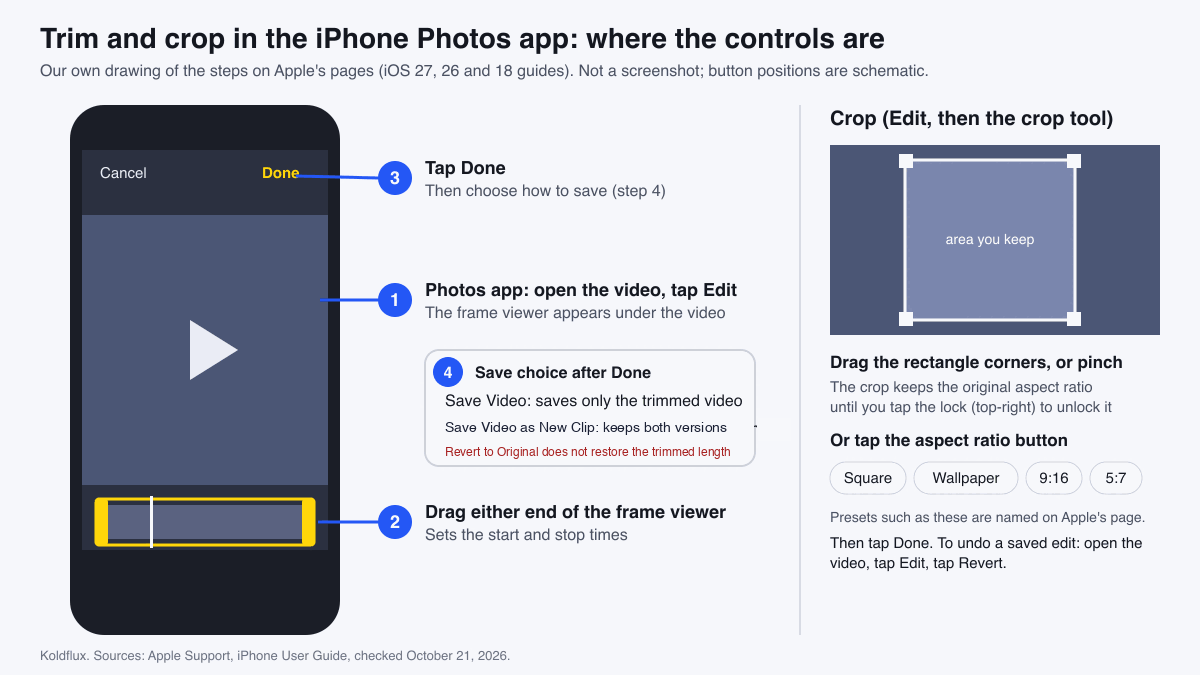
- Go to the Photos app on your iPhone.
- Open the video, then tap Edit.
- Drag either end of the frame viewer below the video to set the start and stop times, then tap Done.
- Tap Save Video to save only the trimmed video, or Save Video as New Clip to save both versions.
Should I tap Save Video or Save Video as New Clip?
Both are offered after you tap Done. The difference is what happens to the original.
| Option | What Apple says it does | Can you get the full video back? |
|---|---|---|
| Save Video | Saves only the trimmed version of the video | Yes. Open the video, tap Edit, tap Revert, then tap Revert to Original (Apple, "How to edit videos") |
| Save Video as New Clip | Keeps the original version and saves an additional trimmed version in your library | The original stays in your library as its own video. Apple says Revert to Original on a new clip removes your other edits, such as exposure or filters, but does not restore the trimmed length |
Apple Support, checked October 21, 2026.
Pick Save as New Clip when you are cutting a short piece out of a long recording and want the long one untouched. Pick Save Video when you only want the shorter version and want it to be reversible.
How do I undo a trim on iPhone?
If you saved with Save Video, open the video, tap Edit, then tap Revert (Apple's iPhone User Guide). Apple's "How to edit videos" support article words it as: tap Revert, then tap Revert to Original.
Apple's support article says Revert to Original on a new clip removes your other edits, such as exposure or filters, but does not restore the trimmed length. Delete the new clip if you do not want it; the original is still in your library.
How do I crop a video on iPhone?
Apple's "Crop, rotate, flip, or straighten photos and videos on iPhone" page (fetched October 21, 2026) describes one flow for photos and videos. We have not tested it on a device.
- Go to the Photos app, tap a video to open it, then tap Edit.
- Tap the crop tool.
- Crop manually: drag the rectangle corners to enclose the area you want to keep, or pinch open or closed. When you drag a corner, the tool keeps the original aspect ratio. Tap the lock at the top-right corner to unlock it.
- Or crop to a standard preset ratio: tap the aspect ratio button, then choose an option such as Square, Wallpaper, 9:16 or 5:7.
- Tap Done to save your edits. If you do not like the changes, tap Cancel, then tap Discard Changes.
Apple lists the same page for rotating (90 degrees), flipping horizontally, and straightening or tilting a video. If you save and change your mind later, open the video, tap Edit, then tap Revert.
Cropping removes the edges of every frame. Picking 9:16 from a horizontal video keeps a tall slice of the picture, so check that your subject stays inside it. For sizes on specific apps see our aspect ratio guide.
Which tool trims, cuts or crops: what do I use for each job?
Three different jobs get mixed up under "edit a video". Pick the row that matches what you want to change.
| Job | What changes | Photos on iPhone | iMovie on iPhone | Koldflux in the browser |
|---|---|---|---|---|
| Trim (start or end) | Removes time from the beginning or end | Yes: Edit, frame viewer, Done | Yes: drag the yellow trim handles (Apple) | Trim a video by timestamp |
| Cut or split (middle) | Removes a section between two points | Not described on Apple's trim page | Yes: Split, then Delete (Apple) | No single tool: trim two parts, then merge them |
| Crop (frame edges) | Removes the edges of every frame | Yes: Edit, crop tool, Done | Not covered here | Crop a video by exact pixels |
Apple Support and Koldflux tool pages, checked October 21, 2026.
How do I cut out the middle of a video on iPhone?
Photos trims the start and the end only, as far as Apple's trim page describes. To remove a section from the middle, Apple's iMovie for iPhone guide documents splitting a clip and deleting clips from the timeline. These steps are from "Arrange video clips and photos in iMovie on iPhone", read October 21, 2026 (https://support.apple.com/guide/imovie-iphone/knac788312/ios). We have not tested them on a device. Apple lists split and delete as separate actions; running them one after the other to remove a middle section is our reading of them.
- Open a movie project in the iMovie app, with your video in the timeline.
- Scroll the timeline so the playhead sits where the unwanted part starts. Apple says to make sure the playhead is not at the very beginning of the clip.
- Tap the clip in the timeline to show the inspector at the bottom of the screen, tap the Actions button, then tap Split. Or tap the clip (it is outlined in yellow) and swipe down over the playhead.
- Scroll to where the unwanted part ends and split again the same way.
- Tap the middle piece in the timeline, then tap Delete.
Apple says splitting works on video clips only, and that iMovie puts a cut (None transition) between the two new clips, which you can change to a cross-dissolve or another transition. Removing a clip from a project leaves it in your media browser, so you can add it back.
Splitting and deleting changes only the project, not the original video in Photos. Export the finished movie from iMovie to get a file.
Photos, iMovie or a browser tool: which should I use?
| Photos (iPhone) | iMovie (iPhone) | Koldflux in the browser | |
|---|---|---|---|
| Trim start and end | Yes (Apple) | Yes (Apple) | Yes, by start and end timestamp |
| Remove a middle section | Not described by Apple | Yes, Split and Delete (Apple) | Trim twice, then merge |
| Crop frame edges | Yes, with ratio presets (Apple) | Not covered on the pages we read | Yes, by pixel box |
| Needs a project first | No, edits the video in place | Yes, a movie project | No, upload not needed, runs in your browser |
Use Photos for a quick start-or-end trim or crop. Use iMovie when you need to remove a middle section on the phone. Use the browser tools when the clip is on a computer, or you want an exact pixel crop.
Free tools:Trim a video by timestampCrop a video by exact pixelsMerge video clips
What if I am not on an iPhone, or the clip is not in Photos?
Koldflux has two free tools that run in your browser with no upload. The trimmer takes a start and an end timestamp and re-encodes only that range as H.264 and AAC. The cropper takes the width, height and X and Y offset of the box you keep, for example a 608 by 1080 box from a 1920 by 1080 clip for 9:16. Both list a 100 MB per file limit on their pages, so a long phone recording may be too big.
For a quick vertical cut of a horizontal clip, work out the box with the aspect ratio calculator, then enter it in the cropper.
Free tools:Trim a video by timestamp (free, in your browser)Crop a video by exact pixels (free, in your browser)
Limits and how we checked
- Not tested: we cannot run an iPhone on our servers, so none of the steps were tested by us. Each step was written on October 21, 2026 from the text of the Apple Support pages under Sources, plus the Apple iMovie for iPhone page on splitting and deleting clips.
- We did not compare iOS versions of those pages, so buttons may be named or placed differently on your version.
- The diagram is our own drawing with schematic button positions.
- We checked that the Koldflux trim and crop pages answer and took their limits from those pages.
Do it in your browser
Free Koldflux tools, no account needed.
Trim a video by timestampCrop a video by exact pixelsMerge video clips
Questions people ask
How do I trim a video on iPhone?
Open the video in Photos, tap Edit, drag either end of the frame viewer to set the start and stop times, tap Done, then tap Save Video or Save Video as New Clip. These are Apple's steps; we have not tested them on a device.
What is the difference between Save Video and Save Video as New Clip?
Apple says Save Video saves only the trimmed version, and Save Video as New Clip keeps the original and saves an additional trimmed version in your library.
Can I undo a trim on iPhone?
For a video saved with Save Video, open it, tap Edit, then tap Revert. Apple says Revert to Original on a new clip removes your other edits, such as exposure or filters, but does not restore the trimmed length.
How do I crop a video on iPhone?
In Photos, open the video, tap Edit, use the crop tool, drag the rectangle corners or choose a preset such as Square, Wallpaper, 9:16 or 5:7, then tap Done. Tap the lock at the top-right to change the aspect ratio when dragging.
How do I cut out the middle of a video on iPhone?
Apple's trim steps in Photos cover the start and stop only. In iMovie for iPhone, Apple documents Split (Actions button, then Split, or swipe down over the playhead) and Delete (tap the clip, then tap Delete); split at both ends of the part you do not want, then delete the middle piece. We have not tested this on a device.
Related
Sources and how we checked
- Apple Support, iMovie User Guide for iPhone: Arrange video clips and photos in iMovie on iPhone (split and delete) (checked 2026-10-21)
- Apple Support, iPhone User Guide: Trim video length, adjust speed, and edit audio on iPhone (checked 2026-10-21)
- Apple Support, iPhone User Guide: Crop, rotate, flip, or straighten photos and videos on iPhone (checked 2026-10-21)
- Apple Support: How to edit videos on your iPhone, iPad, Mac, or Apple Vision Pro (published May 1, 2026) (checked 2026-10-21)
- Apple Support, iPhone User Guide: Edit photos and videos on iPhone (checked 2026-10-21)
We fetched the Apple Support pages in the sources on October 21, 2026 and wrote each step from their text. We did not compare iOS versions of the pages. We also read the Apple iMovie for iPhone page on splitting and deleting clips the same day. We cannot run an iPhone on our servers, so none of the steps were tested by us, and the diagram is our own drawing with schematic button positions. We checked that the Koldflux trim and crop pages answer and read their limits from those pages. Apple, iPhone, iOS, iMovie and Photos are trademarks of Apple Inc.; Koldflux is not affiliated with or endorsed by Apple.