Specs guide
Video bitrate: how to choose one and check your file
Short answer
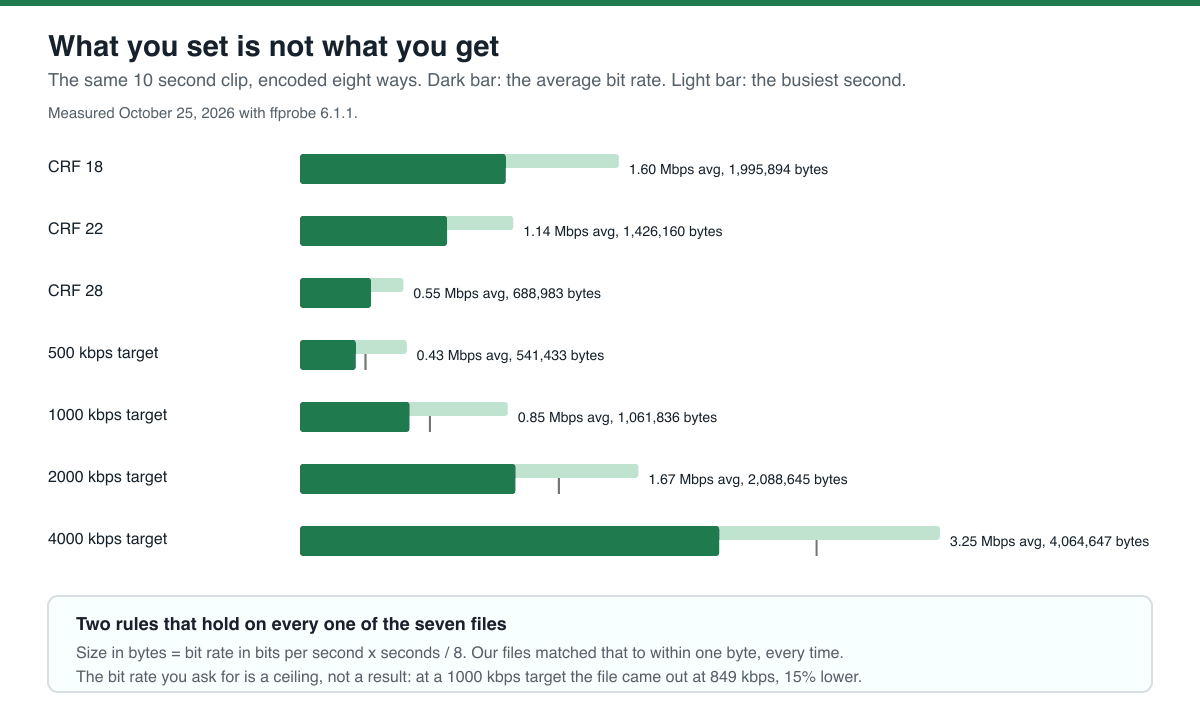
Bitrate is how much data your video uses per second, and it decides how big the file is. The arithmetic is simple: size in bytes = bit rate in bits per second multiplied by the length in seconds, divided by 8. We checked that on seven real encodes and it held to within one byte every time. The part that surprises people is the other half: the bit rate you ask for is a ceiling, not a result. At a 1000 kbps target our file came out at 849 kbps, 15% lower, and the busiest second inside it was 1.6 Mbps.
Key takeaways
- The formula: size in bytes = bit rate in bits per second x seconds / 8. All seven of our files matched it to within one byte.
- The bit rate you set is a ceiling. We asked for 500, 1000, 2000 and 4000 kbps and got 433, 849, 1671 and 3252 kbps: 13 to 19% under the target every time, on a clip this simple.
- The average and the peak are different numbers. Our CRF 22 file averaged 1.14 Mbps and hit 1.65 Mbps in its busiest second, 45% higher.
- Quality and bit rate are not the same thing. YouTube recommends 8 Mbps for 1080p and 5 Mbps for 720p for standard frame rate uploads, and it says no bitrate limit is required (official, read October 25, 2026).
- To work backwards from a size limit, the free bitrate calculator on this site does the arithmetic: for a 1 MB file, 10 seconds and a 128 kbps audio track it says set 711 kbps. We encoded at that and the file came out at 0.730 MB, 27% under the limit.
- To check a file you already have, ffprobe prints its real bit rate in one command, and that number is what matters, not the one you typed into the encoder.
What a bit rate is, and what it is not
A bit rate is the number of bits your video spends on every second of screen time. Multiply it by the length and divide by 8 and you have the file size. That is the whole idea, and it is the reason a 10 minute video at 8 Mbps is around 600 MB while the same 10 minutes at 2 Mbps is around 150 MB.
What a bit rate is not is a picture quality setting. Two files at the same bit rate can look completely different, because the encoder spends the bits where the picture needs them. That is what variable bit rate means: the encoder gives simple, static shots fewer bits and busy shots more. YouTube uploads are variable bit rate, and its encoding settings page says "No bitrate limit is required, though we offer recommended bit rates below for reference" (official, read October 25, 2026).
So a bit rate is a target you hand to an encoder, and the encoder treats it as a budget. Our own measurement on the next section is what that budget actually buys.
The one formula, checked against seven real files
We encoded the same 10 second clip seven ways and measured every file with ffprobe: three quality settings (CRF 18, 22 and 28) and four fixed bit rate targets (500, 1000, 2000 and 4000 kbps).
| Encode | Average bit rate | Busiest second | File size | Bytes the formula predicts |
|---|---|---|---|---|
| CRF 18 | 1.60 Mbps | 2.47 Mbps | 1,995,894 | 1,995,894 |
| CRF 22 | 1.14 Mbps | 1.65 Mbps | 1,426,160 | 1,426,160 |
| CRF 28 | 0.55 Mbps | 0.80 Mbps | 688,983 | 688,982 |
| 500 kbps target | 0.43 Mbps | 0.83 Mbps | 541,433 | 541,432 |
| 1000 kbps target | 0.85 Mbps | 1.61 Mbps | 1,061,836 | 1,061,835 |
| 2000 kbps target | 1.67 Mbps | 2.63 Mbps | 2,088,645 | 2,088,645 |
| 4000 kbps target | 3.25 Mbps | 4.96 Mbps | 4,064,647 | 4,064,646 |
Source: our own measurement on October 25, 2026. Method: ffmpeg 6.1.1 with libx264 on a 10 second, 1280x720, 30 fps clip made from an ESO animation published on Wikimedia Commons (CC BY 4.0); every file was measured with ffprobe 6.1.1, and the busiest second was worked out by adding up the packet sizes in each one second bucket of the file. The commands and every number are in the published log.
The last column is the formula applied to the measured average bit rate, and the difference between it and the real size is one byte in most rows. That is not a coincidence: a container reports its own bit rate as size divided by duration, so the arithmetic always closes. The useful part is the first column, the bit rate you asked for, against the second column, the bit rate you got.
What you set is not what you get
Look at the four rows with a fixed target. At 500 kbps we got 433 kbps, at 1000 kbps we got 849, at 2000 kbps we got 1671 and at 4000 kbps we got 3252. The encoder was given a budget and spent less of it than it was given, because this clip is easy to compress: a slow zoom over a galaxy.
That is the rule to take away, and it works in your favour. If you need a file under a limit, a target bit rate is a safe way to get there, because the real file will be smaller than the target predicts. It is also the reason a bit rate is a poor way to hit a limit exactly.
Source: our own measurement on October 25, 2026, the same seven files as the table above. Method: average bit rate from ffprobe, busiest second from the packet sizes per one second bucket.
The numbers YouTube recommends
If your video is going to YouTube, its encoding settings page lists the bit rates it suggests for standard definition uploads (official, read October 25, 2026).
| Resolution | 24, 25 or 30 fps | 48, 50 or 60 fps |
|---|---|---|
| 1080p | 8 Mbps | 12 Mbps |
| 720p | 5 Mbps | 7.5 Mbps |
| 480p | 2.5 Mbps | 4 Mbps |
| 360p | 1 Mbps | 1.5 Mbps |
| 1440p | 16 Mbps | 24 Mbps |
| 2160p (4K) | 35 to 45 Mbps | 53 to 68 Mbps |
Source: YouTube Help, Recommended upload encoding settings (official, read October 25, 2026). The same page lists 8K at 80 to 160 Mbps for standard frame rate and 120 to 240 Mbps for high frame rate.
Two things to take from it. First, these are upload recommendations, not playback bit rates: YouTube re-encodes what you send, so the aim is a clean source file with enough data for the re-encode to work from. Second, compare them with what we measured. Our 720p clip at CRF 22 came out at 1.14 Mbps, a quarter of the 5 Mbps YouTube suggests for 720p. YouTube would still accept it and would still re-encode it, but you gave it less to work with than the recommendation asks for.
How to check your own file
Two questions come up: what bit rate should I set, and what bit rate is my file actually at. The first is arithmetic, the second is one command.
For the first, the free bitrate calculator on this site works backwards from a size limit and budgets the audio track separately: video kbps = (target MB x 1048576 x 8 / seconds / 1000) minus the audio bit rate. We ran it on our own case: a 1 MB target, 10 seconds and a 128 kbps audio track gave a total budget of 839 kbps and a video bit rate to set of 711 kbps.
We then encoded at exactly 711 kbps. The file came out at 765,165 bytes, which is 0.730 MB, 27% under the 1.000 MB limit, with a measured video bit rate of 608,585 bits per second.
Source: our own run on October 25, 2026 in headless Chromium against the live calculator and then ffmpeg 6.1.1 on the result. The calculator output and the file it produced are in the published log.
ffprobe -v error -show_entries format=duration,size,bit_rate -show_entries stream=codec_name,width,height,bit_rate -of default=noprint_wrappers=1 your-video.mp4What we did not test
We measured one clip, one encoder and one resolution. Here is where the limits are.
We did not test HDR, 10-bit, 4K or high frame rate. We did not test other encoders, only libx264 in ffmpeg 6.1.1. We did not test how YouTube, Instagram or TikTok re-encode any of these files, and we did not upload anything to a platform.
Our clip is a slow zoom over a galaxy: easy to compress and completely static in its detail. A busy real scene uses the budget it is given, so on that kind of footage the gap between the target and the result will be smaller than the 13 to 19% we measured.
We did not test audio bit rates beyond the 128 kbps AAC track we used, and the calculator we checked budgets audio separately rather than measuring it.
What to do next
The situation you are in decides the next step.
- Your file has to fit a limit: work backwards from the size, set that bit rate, then measure the result and check it is under the limit.
- You want the best quality for a target size: use a quality setting (CRF) rather than a bit rate, because it spends the bits where the picture needs them.
- You are uploading to YouTube: send a file that meets the recommended bit rate for its resolution, and remember the platform re-encodes it anyway.
- Your file is much larger than the target suggests: check whether it contains audio, and compare the measured bit rate with the bit rate you set.
- You want to know what a file will cost to upload: multiply the bit rate by the length and divide by 8, and then add the upload time on top.
Do it in your browser
Free Koldflux tool, no account needed.
Questions people ask
What is a good bit rate for YouTube?
YouTube recommends 8 Mbps for 1080p and 5 Mbps for 720p at standard frame rates, 12 Mbps and 7.5 Mbps at high frame rates, and it says no bitrate limit is required (official, read October 25, 2026). Our own 720p encode at CRF 22 measured 1.14 Mbps, well under the recommendation.
How do I calculate the size of a video from its bit rate?
Size in bytes = bit rate in bits per second x length in seconds / 8. At 8 Mbps for 10 minutes that is 8,000,000 x 600 / 8 = 600,000,000 bytes. All seven of our test files matched this to within one byte.
Why is my file smaller than the bit rate I set?
Because the bit rate is a budget, not a promise. Our 1000 kbps target produced a file measuring 849 kbps, 15% lower. The encoder only spends bits where the picture changes, and a simple clip needs fewer.
What is the difference between CBR and VBR?
Constant bit rate spends the same number of bits on every second, which wastes bits on static scenes. Variable bit rate spends them where the picture needs them, and YouTube uploads are variable bit rate: its settings page says no bitrate limit is required (official, read October 25, 2026).
Does a higher bit rate always mean better quality?
No. Two files at the same bit rate can look different, because the encoder decides where the bits go. After a certain point more bits buy very little, which is why a quality setting such as CRF usually beats a very high bit rate for the same file size.
Related
Sources and how we checked
- Koldflux test log: seven encode commands, ffprobe output, per second packet sums and the calculator run (our measurement, October 25, 2026) (checked 2026-10-25)
- YouTube Help: Recommended upload encoding settings, bit rate table (official, read October 25, 2026) (checked 2026-10-25)
- FFmpeg documentation: -b:v, -maxrate, -bufsize and -crf (official, read October 25, 2026) (checked 2026-10-25)
- CyberLink: What Is Bitrate, Definition and Best Video Bitrate Settings (third party, read October 25, 2026 for coverage comparison, not run) (checked 2026-10-25)
- Joseph Nilo: Best YouTube Bitrate Settings for 1080p, 4K, Shorts and HDR (third party, read October 25, 2026 for coverage comparison, not run) (checked 2026-10-25)
We made one real test file: a 10 second, 1280x720, 30 fps clip made with ffmpeg 6.1.1 from an ESO animation published on Wikimedia Commons under CC BY 4.0, no people in frame. We encoded that same file seven ways, three quality settings and four fixed bit rate targets, and measured every result with ffprobe 6.1.1 for its container bit rate and for the packet sums of each one second bucket, which gives the busiest second in the file. We checked the size formula against all seven files. We then ran the live Koldflux video bitrate calculator in headless Chromium with a 1 MB target, 10 seconds and 128 kbps of audio, and encoded a file at the bit rate it told us to use. The two competitor pages above were read for coverage comparison and not run; both explain bit rate and list YouTube's recommended table, and neither measures what an encoder produces for a target or ships a file you can check. YouTube, FFmpeg, CyberLink and Joseph Nilo are trademarks of their owners; Koldflux is not affiliated with or endorsed by them.