Recording guide
How to screen record on iPhone and Windows (built-in tools)
Short answer
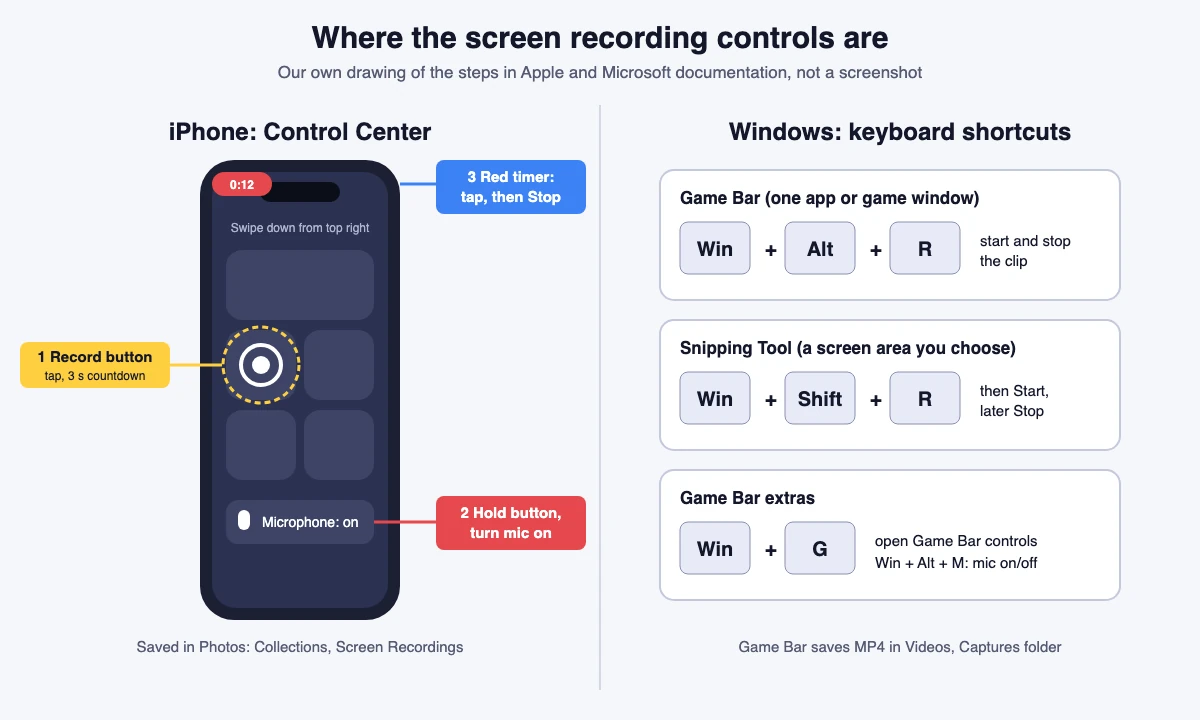
On iPhone, swipe down from the top-right corner (swipe up from the bottom on models with a Home button), tap the Screen Recording button, wait for the 3-second countdown, and stop from the red timer; touch and hold the button first to turn the microphone on. On Windows, press Win+Alt+R to start and stop a Game Bar clip of the app or game you are in, or press Win+Shift+R to record a screen area you choose with Snipping Tool. No extra software is needed on either.
Key takeaways
- iPhone: Control Center, Screen Recording button, 3-second countdown. Recordings land in Photos under Screen Recordings.
- iPhone audio: touch and hold the button and tap Microphone before you start. Some apps do not allow recording, and you cannot record and use screen mirroring at the same time (Apple).
- Windows 10 and 11, Game Bar: Win+Alt+R starts and stops, Win+Alt+M toggles the mic, the MP4 is saved in Videos, Captures (Microsoft).
- Windows, Snipping Tool: Win+Shift+R, drag over the area, Start, Stop. It records the area you select, so it suits cases where you want a specific part of the screen.
How do I screen record on an iPhone?
This is the process on Apple's "Take a screen recording on iPhone" page (read October 20, 2026). We cannot run an iPhone on our servers, so these steps come from Apple's page and are not our own test.
- Swipe down from the top-right corner of the screen to open Control Center. On an iPhone with a Home button, swipe up from the bottom edge instead (Apple, Control Center page).
- Tap the Screen Recording button. If you do not see it, add it first (next section).
- Wait for the 3-second countdown, then swipe up to close Control Center and do what you want to record.
- To stop, on an iPhone with a Dynamic Island tap the red circle, then tap the stop button. On other models tap the red timer at the top left of the screen, then tap Stop.
- Find the video in the Photos app: tap Collections, scroll to Media Types, tap Screen Recordings.
How do I record the iPhone screen with sound or my voice?
Apple's page gives one extra step: turn on the microphone before you start.
- Swipe down from the top-right corner to open Control Center.
- Touch and hold the Screen Recording button.
- Tap Microphone to turn it on, then tap Start Recording.
- Wait for the 3-second countdown and record. Stop the same way as above.
With the microphone on, your voice is added to the video. Apple also states that some apps might not allow you to record their content, so a recording from such an app may fail or come out blank. The page does not describe how in-app sound is handled, so listen to a short test clip before a long recording.
Why is there no Screen Recording button on my iPhone?
Apple says to add the control to Control Center if you do not see it. Open Control Center, tap the edit button to start editing, then tap Add a Control at the bottom of the screen to open the controls gallery and tap Screen Recording. Close Control Center by swiping up from the bottom center when you are done (Apple, "Use and customize Control Center on iPhone").
How do I screen record on Windows 10 and Windows 11 with Xbox Game Bar?
Microsoft's page "Use a screen reader to record your screen with Xbox Game Bar" (dated January 15, 2026, applies to Windows 11 and Windows 10) gives these steps, which are the same without a screen reader. We could not run Windows here, so they are from that page and not our own test.
- Turn Game Bar on once: open Windows Settings, search for xbox and switch on Enable Xbox Game Bar.
- Go to the game or app window you want to record.
- Press Win+Alt+R to start recording a clip.
- Optional: Win+Alt+M turns the microphone on and off during the recording, and Win+G shows the Game Bar controls.
- Press Win+Alt+R again to stop.
- Open Videos, then the Captures folder. The clip is an MP4 whose name has the app or game name and the date and time.
To record all computer sounds, Microsoft says to open Game Bar with Win+G, open its Settings, go to Capturing and select the All option.
A screenshot of the same window is Win+Alt+Print Screen; it is saved to Captures as a PNG.
What can Game Bar not record?
Microsoft's steps tell you to go to "the game or app you want to record", so Game Bar is built around one game or app window at a time. The Microsoft pages we read do not list a limit on the desktop or File Explorer, so we cannot cite one. If you need to record an area or a window the Record button does not work in, use Snipping Tool below.
Game Bar also needs Windows 10 22H2 or newer for some features, according to the Xbox support page (see sources).
How do I record part of the screen on Windows with Snipping Tool?
Microsoft's Snipping Tool page (dated October 9, 2025, applies to Windows 11 and Windows 10) describes a video snip: a recording of a rectangular selection of any part of the screen. Not run by us; steps are from the page.
- Open Snipping Tool, select the Record button, then select New. Or press Win+Shift+R.
- Select the area of the screen you want to record, then select Start.
- When you are done, select Stop.
- Save the recording as it is, or select Edit in Clipchamp to add captions or audio.
- It is saved to your Screenshots folder automatically. Select See More, then Settings, to change that folder, or use Save as for another copy.
The page does not say whether Snipping Tool records the microphone or system sound while you record. If you need your voice on the clip, use Game Bar, or add audio in Clipchamp afterward as the page describes.
Which built-in tool should I use?
| Tool | Start | Captures | Audio | Saved to |
|---|---|---|---|---|
| iPhone Control Center | Swipe down, Screen Recording button | Whole screen | Microphone on via touch and hold | Photos, Screen Recordings |
| Windows Game Bar | Win+Alt+R | The game or app window you are in | Win+Alt+M mic; Capturing setting for all sound | Videos, Captures (MP4) |
| Windows Snipping Tool | Win+Shift+R, Start | A screen area you select | Not stated on the page; add in Clipchamp | Screenshots folder |
These tools make plain recordings. For a polished tutorial, trim the video, add captions or cut it to vertical for Shorts, Reels and TikTok; see the related guides below.
Do it in your browser
Free Koldflux tool, no account needed.
Questions people ask
How do I screen record on iPhone?
Swipe down from the top-right corner to open Control Center, tap the Screen Recording button, wait for the 3-second countdown and close Control Center. Stop with the red timer. The video is in Photos, under Screen Recordings.
How do I screen record on iPhone with sound?
Touch and hold the Screen Recording button in Control Center, tap Microphone to turn it on, then tap Start Recording. Apple notes some apps do not allow recording.
How do I screen record on Windows 10?
Press Win+Alt+R in the app or game you want to record, and press it again to stop. Microsoft says the page applies to Windows 10 and 11. The MP4 is in Videos, Captures. Snipping Tool (Win+Shift+R) records a screen area.
How do I screen record on Windows 11?
Use Win+Alt+R for Xbox Game Bar, or Win+Shift+R, drag the area, select Start and then Stop in Snipping Tool.
Where are my screen recordings saved?
iPhone: Photos, Collections, Media Types, Screen Recordings. Game Bar: Videos, Captures folder. Snipping Tool: your Screenshots folder by default.
Can I record my screen on iPhone while using screen mirroring?
No. Apple states you cannot record your screen and use screen mirroring at the same time.
Related
Sources and how we checked
- Apple Support: Take a screen recording on iPhone (iPhone User Guide) (checked 2026-10-20)
- Apple Support: Record the screen on your iPhone, iPad, or iPod touch (published September 14, 2026) (checked 2026-10-20)
- Apple Support: Use and customize Control Center on iPhone (checked 2026-10-20)
- Microsoft Support: Use a screen reader to record your screen with Xbox Game Bar (dated January 15, 2026) (checked 2026-10-20)
- Microsoft Support: Use Snipping Tool to capture screenshots (dated October 9, 2025) (checked 2026-10-20)
- Xbox Support: Get to know Game Bar on Windows (Windows 10 22H2 or newer note) (checked 2026-10-20)
Every step was read on October 20, 2026 from the Apple and Microsoft support pages listed above. We cannot run native iOS or Windows on our servers, so the steps are not tested by us. The picture is drawn by us from those steps and is not a screenshot. We do not state what Game Bar cannot record, because the Microsoft pages we read give no such limit.